Avatar Profile (Expression Blend Shape Map)
Map standard VRM expression names to your avatar's own expression blend shapes
VRC Avatar Viewer takes the expression data received over the VMC protocol (VRM-standard expression names such as Joy / A / Blink) and automatically maps it to your avatar's expression blend shapes. For VRChat avatars, the lip sync set in the Avatar Descriptor is mapped automatically, so the mouth moves out of the box. If you create an avatar profile for a specific avatar, however, you can define these mappings in detail yourself.
An avatar profile is a text file in .toml format, one file per avatar. Just select it in the Streaming Mode panel to apply it, and you can switch profiles at any time, even while receiving VMC.
- This guide assumes you already have the basic motion capture setup working (Move Your Avatar (Capture App)). Make sure your avatar is moving before you continue
- VRM avatars (.vrm) carry their own blend shape definitions, so this feature is mainly intended for VRChat avatars in
.avabformat
Where Profile Files Go
Profiles go in the avatar_profiles folder, located in the same folder as the Avatar Viewer application.
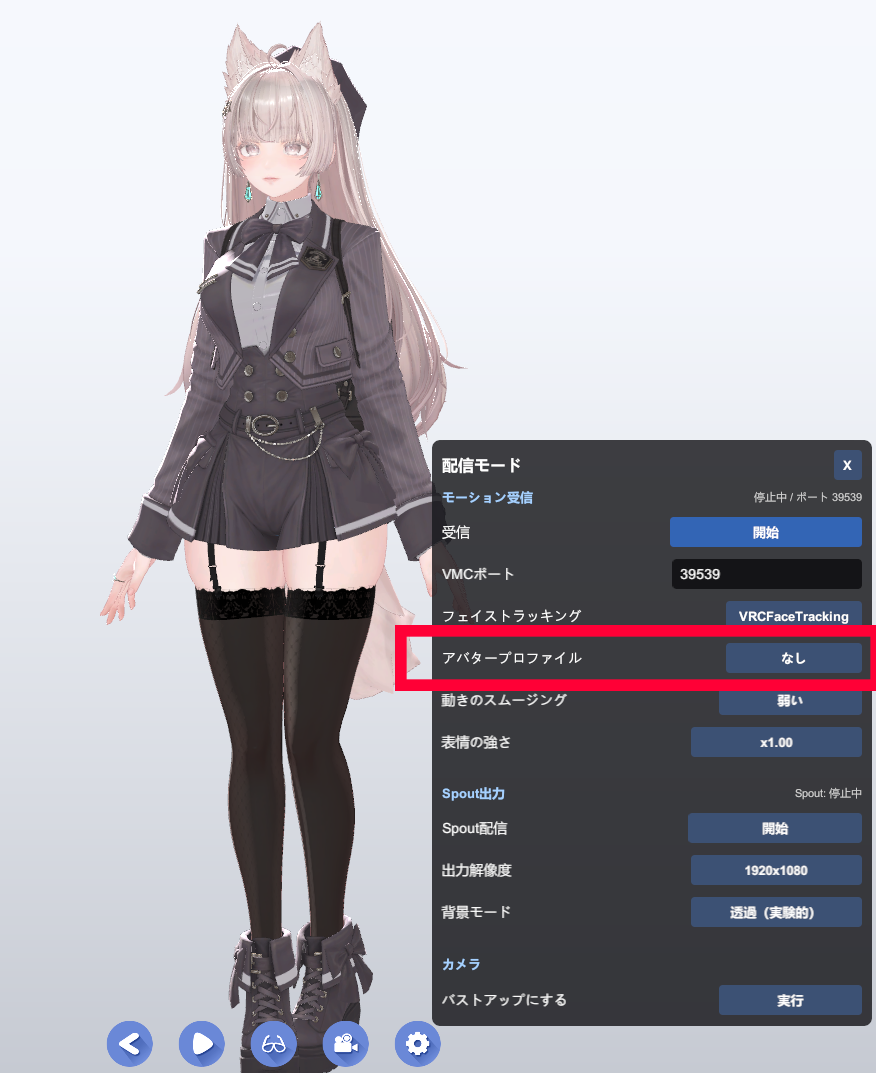
- Launch the Avatar Viewer and click the Streaming button on the toolbar
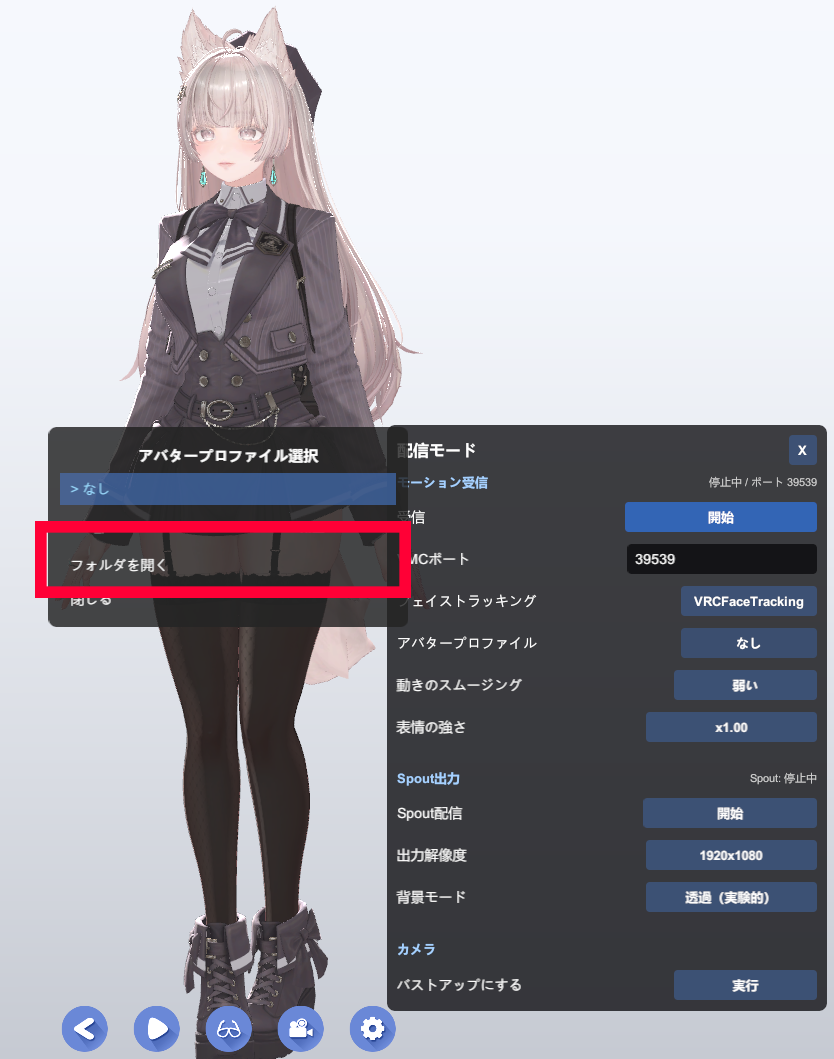
- Click Open Folder in the "Avatar Profile" section to open the
avatar_profilesfolder in Explorer - Copy
sample.tomlin that folder and rename it, for example after your avatar (e.g.my_avatar.toml) - Open it in a text editor (Notepad, VS Code, etc.) and edit it
sample.tomldoes not appear in the profile list, so it is fine to leave it there as a reference- The file extension must be
.toml - You can name the file (the part before the extension) however you like. The viewer uses the value of the
namefield as the display name
Writing the TOML File
At a minimum, all you need is a name at the top of the file followed by as many [[expressions]] blocks as you need.
name = "マイアバター"

[[expressions]]
source   = "Joy"
target   = "face_happy"
renderer = "Body"

[[expressions]]
source   = "Blink"
target   = "eye_close"
renderer = "Body"

[[expressions]]
source   = "A"
target   = "mouth_a"
renderer = "Body"
Each field means the following.
| Field | Description | If omitted |
|---|---|---|
source |
Name of the received expression (Joy / A / Blink, etc.) | Required |
target |
Name of the avatar's expression blend shape | Required |
renderer |
Name of the GameObject whose SkinnedMeshRenderer has the expression blend shape | Searched automatically |
min_weight |
Lower limit of the expression blend shape weight (0–100) | 0 |
max_weight |
Upper limit of the expression blend shape weight (0–100) | 100 |
- If you write several
[[expressions]]blocks with the samesource, one expression can drive multiple expression blend shapes at once - Lines starting with
#are comments. Feel free to add notes
Available source Names
The expression names you can use for source follow the VRM standard and fall into the categories below. They are not case-sensitive.
| Category | source names |
|---|---|
| Expressions | Joy / Angry / Sorrow / Fun / Surprised / neutral |
| Lip sync | A / I / U / E / O |
| Blinking | Blink / Blink_L / Blink_R |
| Gaze | LookUp / LookDown / LookLeft / LookRight |
| Eyebrows | browDownLeft / browDownRight / browInnerUp / browOuterUpLeft / browOuterUpRight |
- Expression names not listed here (for example, VRCFaceTracking's detailed mouth corner, cheek and tongue parameters) cannot be handled by avatar profiles. To drive those, switch "Face Tracking" in Streaming Mode to VRCFaceTracking and support them in the avatar's FX layer
Finding target (Expression Blend Shape) Names
For target, write the exact name of an expression blend shape that actually exists on the avatar. Names vary a lot depending on the creator and their naming conventions, so check them beforehand.
Method A: Check in Unity (before exporting)
- Open the avatar in Unity
- Select the face mesh in the Hierarchy (usually
BodyorFace) - In the Inspector, expand SkinnedMeshRenderer → BlendShapes
- The names listed there can be used as-is for
target, and the name of the selected GameObject is what goes inrenderer
Method B: Check the Viewer log
When a target or renderer name is wrong, the viewer writes a warning to the log. A practical approach is to create a profile with placeholder names, load it, and fix the names one by one while checking the log.
Adjusting Strength with min_weight / max_weight
The strength of the received expression (0.0–1.0) is linearly mapped between min_weight and max_weight and applied to the expression blend shape. If omitted, the range is 0–100 (i.e. it can move all the way to 100%).
# 笑顔を少し控えめにしたい
[[expressions]]
source     = "Joy"
target     = "face_happy"
renderer   = "Body"
max_weight = 60

# 常に少しだけ口角を上げておきたい(下駄を履かせる)
[[expressions]]
source     = "neutral"
target     = "face_smile_slight"
renderer   = "Body"
min_weight = 20
max_weight = 40- The
min_weightvalue is applied even when the received value is 0, so you can also use it as an always-on baseline offset - If expressions look too jumpy, lowering
max_weightis usually the most effective first step
Caution When Omitting renderer
If you leave out renderer, the viewer checks every SkinnedMeshRenderer in the avatar in order and applies the mapping to the first one that has the specified target expression blend shape.
This is convenient, but if another mesh such as clothing or hair has an expression blend shape with the same name, the wrong mesh may end up moving. We generally recommend specifying renderer explicitly.
Selecting and Applying a Profile in the Viewer
- Display your avatar in the Avatar Viewer
- Open Streaming from the toolbar
- Click the select button under "Avatar Profile" and choose the profile you want from the list
- Turn VMC reception on, and the mapped expression blend shapes will start moving
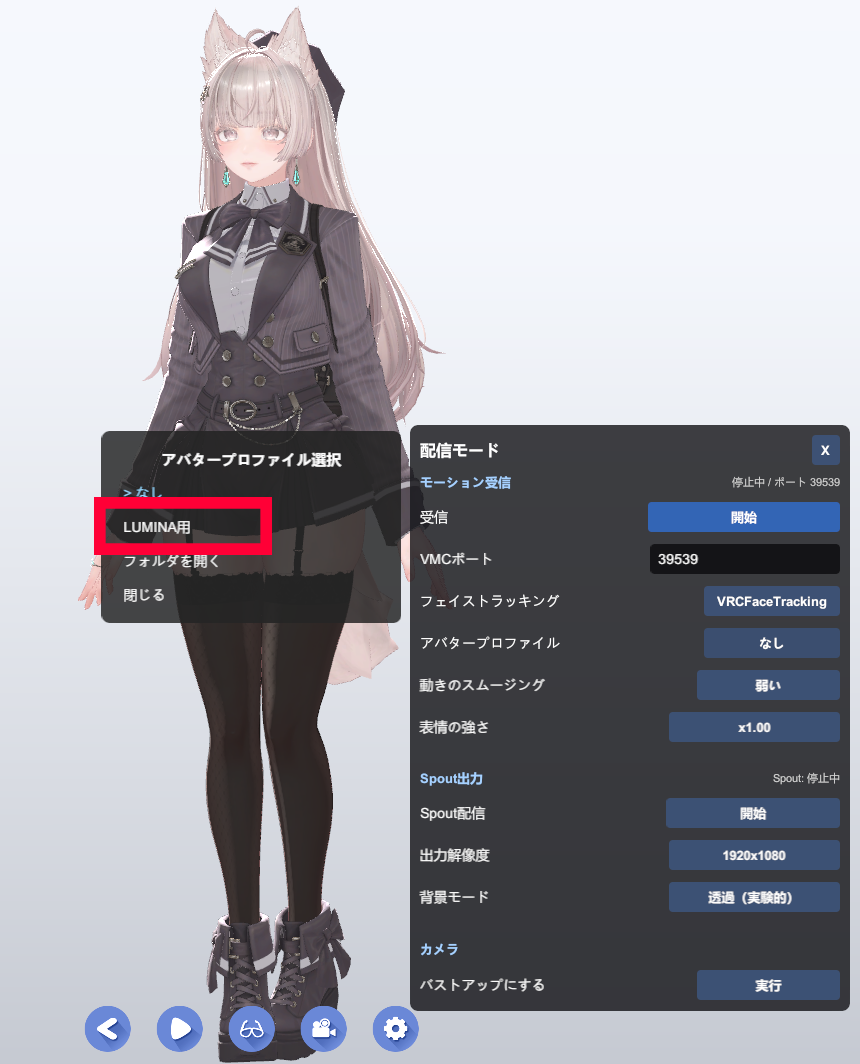
- If you switch profiles while receiving VMC, the bindings are updated automatically. There is no need to stop or restart anything
- Choosing None returns to the standard automatic mapping without a profile
- After editing a file, switch to a different profile once and then back again to apply your changes
Troubleshooting
-
Nothing changes at all
The usual causes are a typo in
source, atargetexpression blend shape name that doesn't exist, or a wrongrenderername. Check the correct names using Method A in Step 4 -
The wrong mesh moves
If
rendereris omitted, the mapping may be hitting another mesh that has an expression blend shape with the same name. Specifyrendererexplicitly -
Expressions are too strong or too weak
Adjust the upper limit with
max_weightand the constant offset withmin_weight -
I want one expression to drive multiple expression blend shapes
Add multiple
[[expressions]]blocks with the samesource, and they will all move together -
The profile doesn't appear in the list
Check that the file extension is
.tomland that the file is placed directly inside theavatar_profilesfolder. Files namedsample.tomlare excluded from the list