Display Your Avatar
From exporting your avatar to displaying it in the Viewer
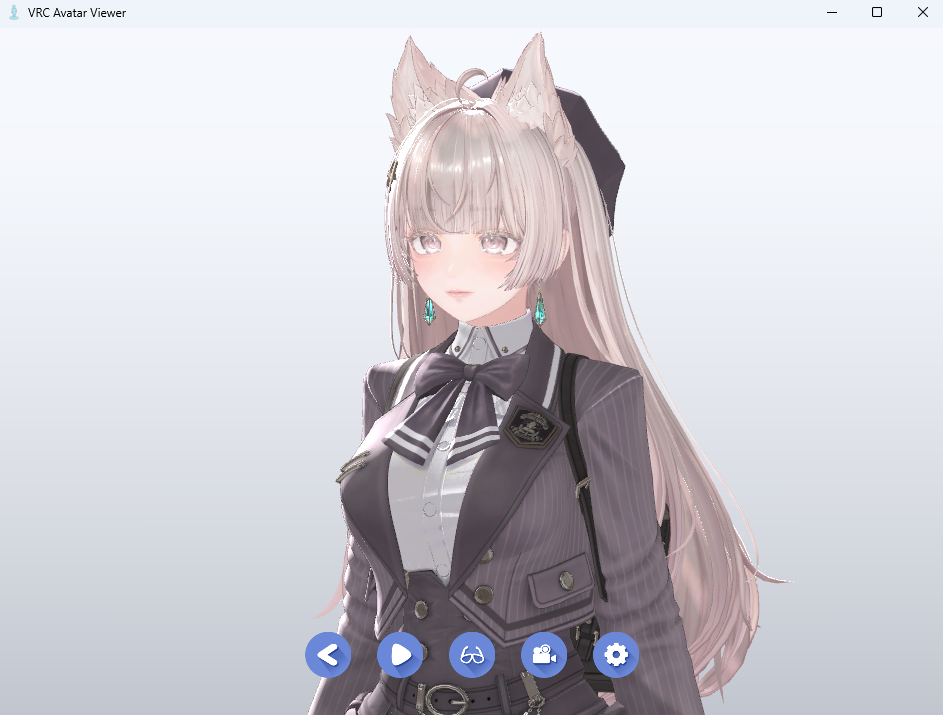
Download
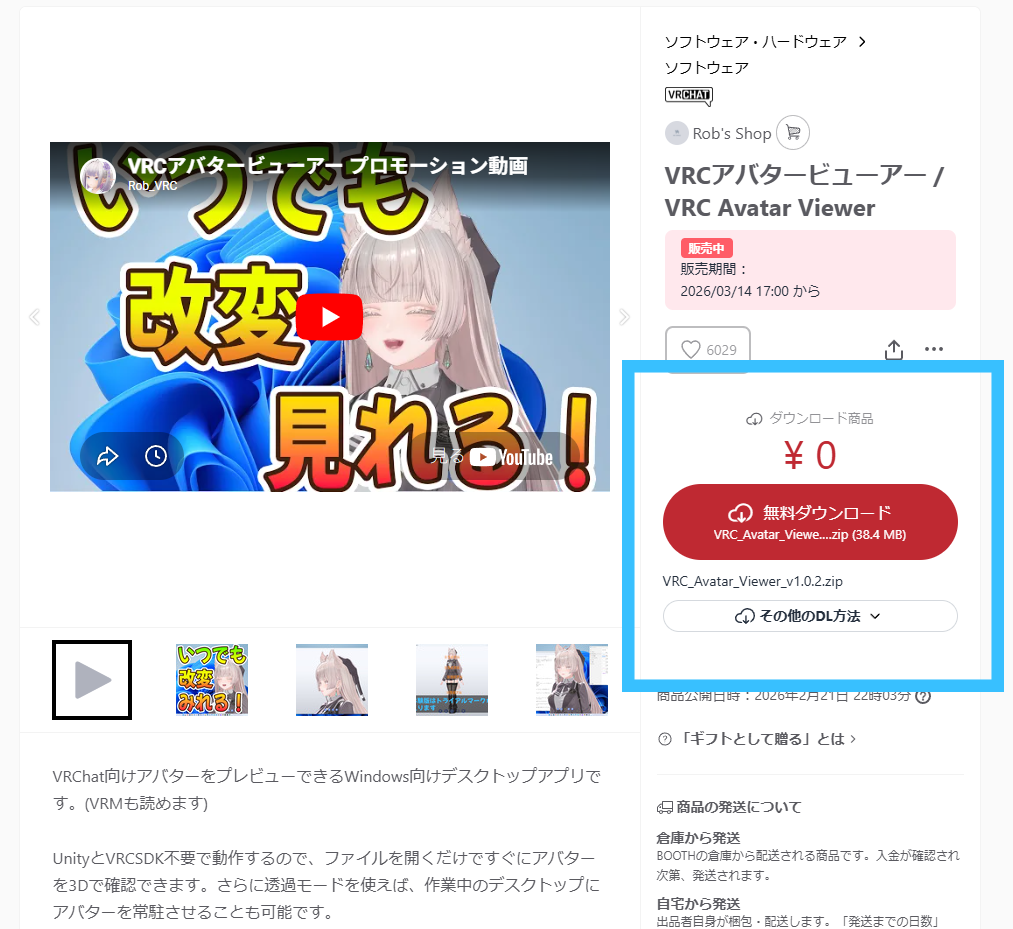
Download the viewer itself (VRC Avatar Viewer) from the BOOTH download page. You'll install the exporter from VCC (VRChat Creator Companion) in Step 2.
- Go to the BOOTH download page
- Download the viewer
- Extract the downloaded ZIP file
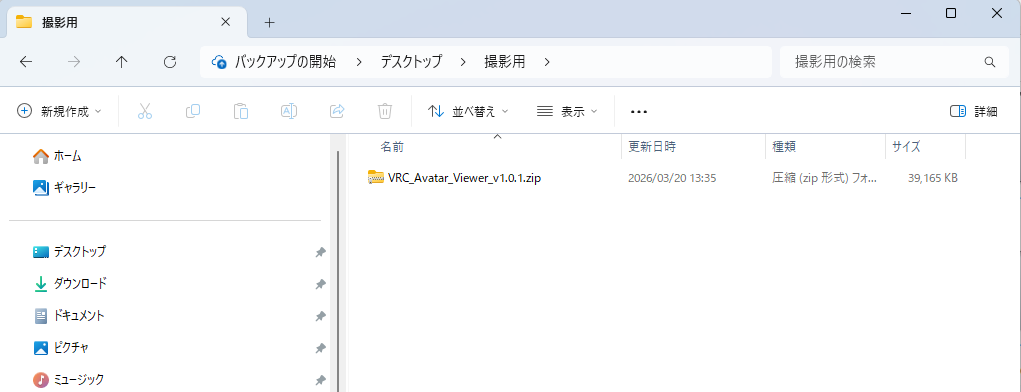
- Just extract the ZIP and the viewer is ready to launch (no installation required)
- You'll install the exporter from VCC (VRChat Creator Companion) in Step 2
Install the Exporter
The exporter is a Unity editor extension (something like a plugin). Install it from VCC (VRChat Creator Companion).
-
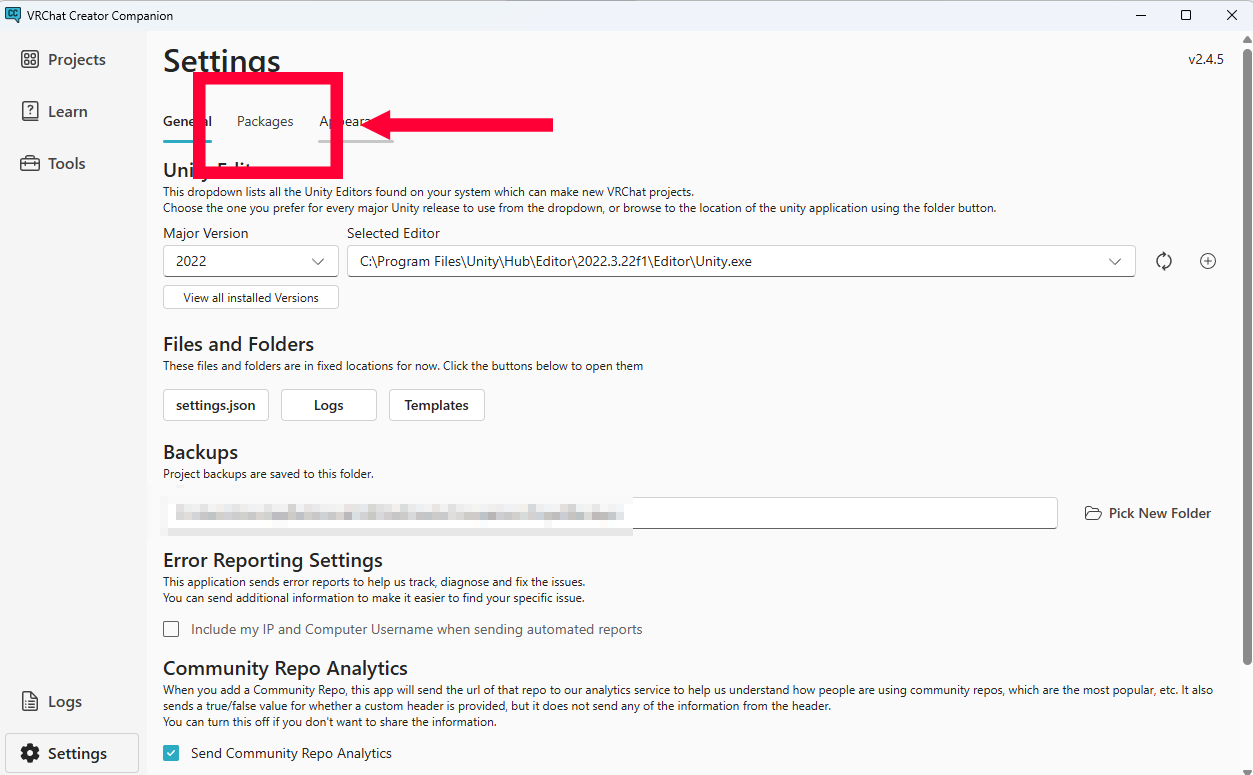
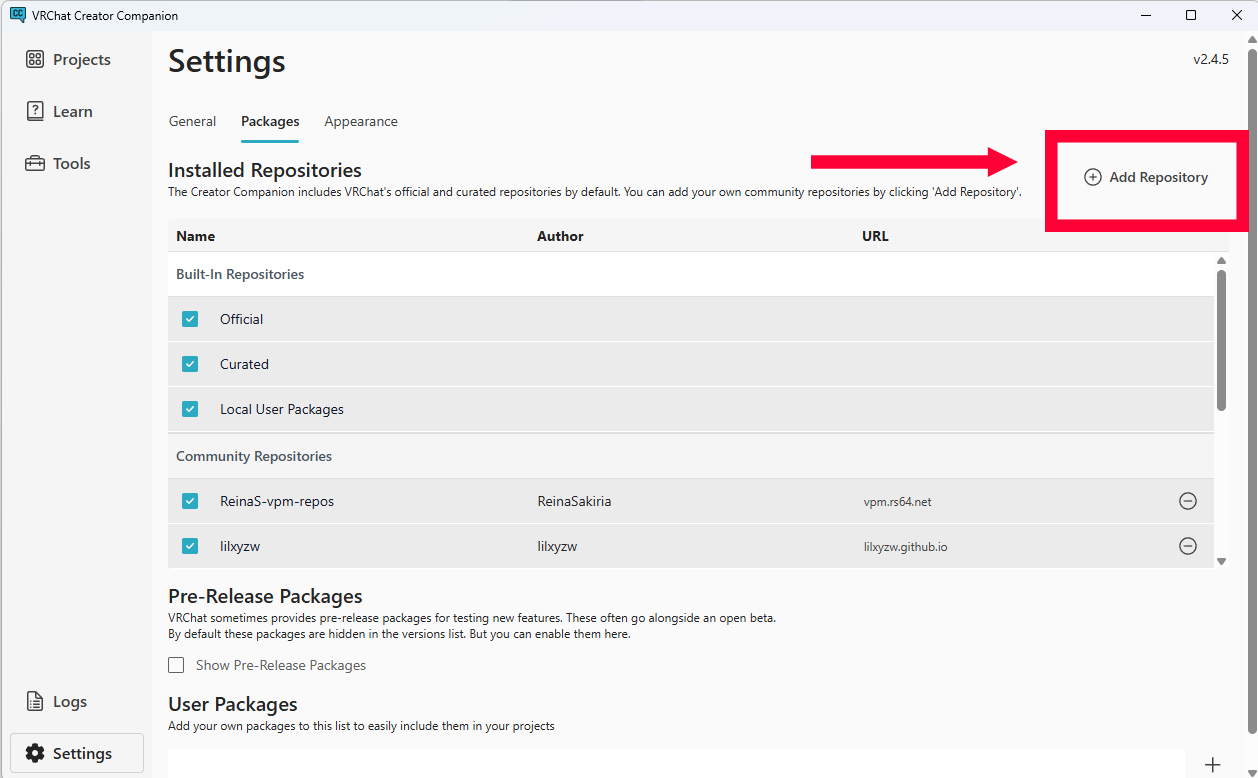
Open VCC and click
Settings→Packages→Add Repository
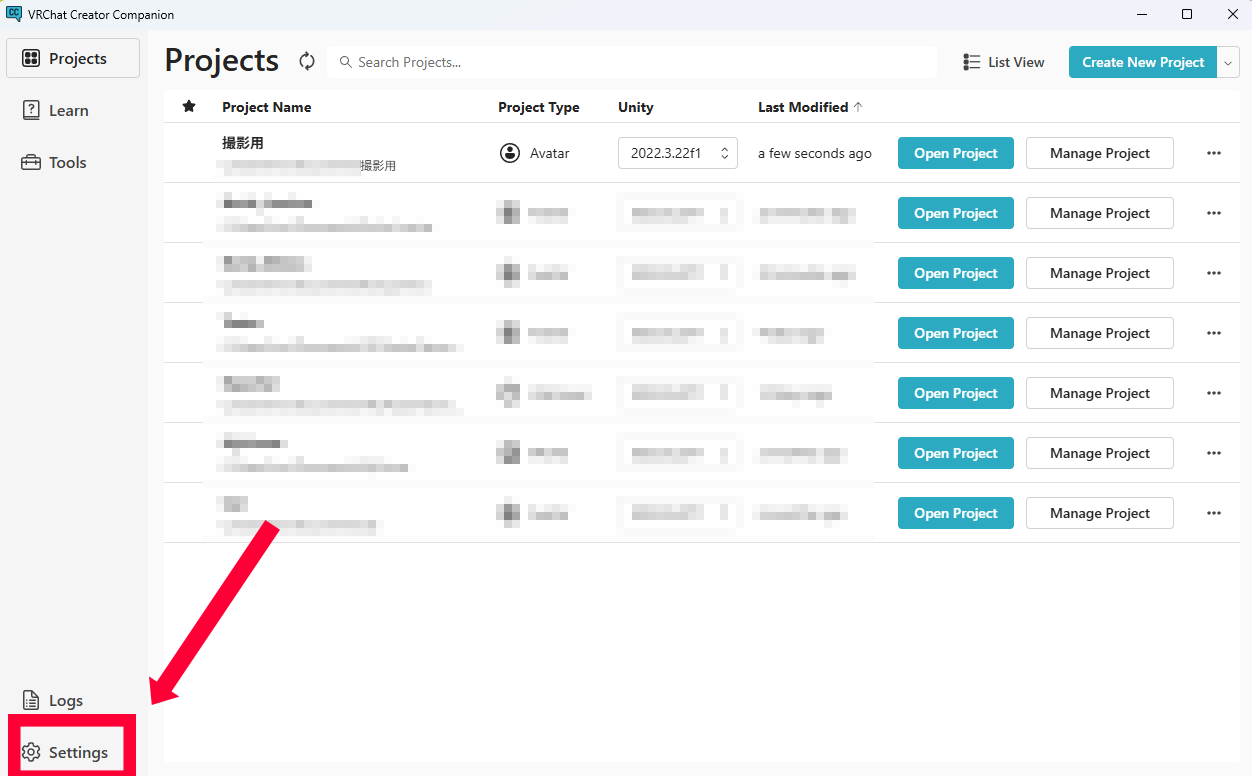
-
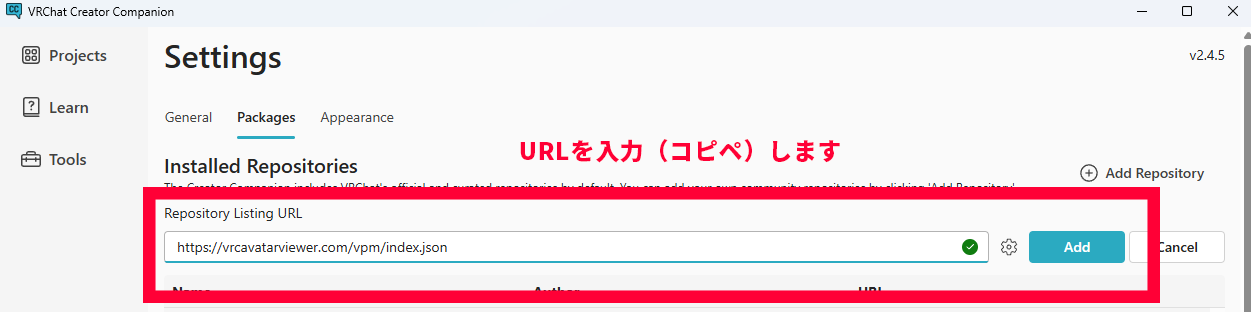
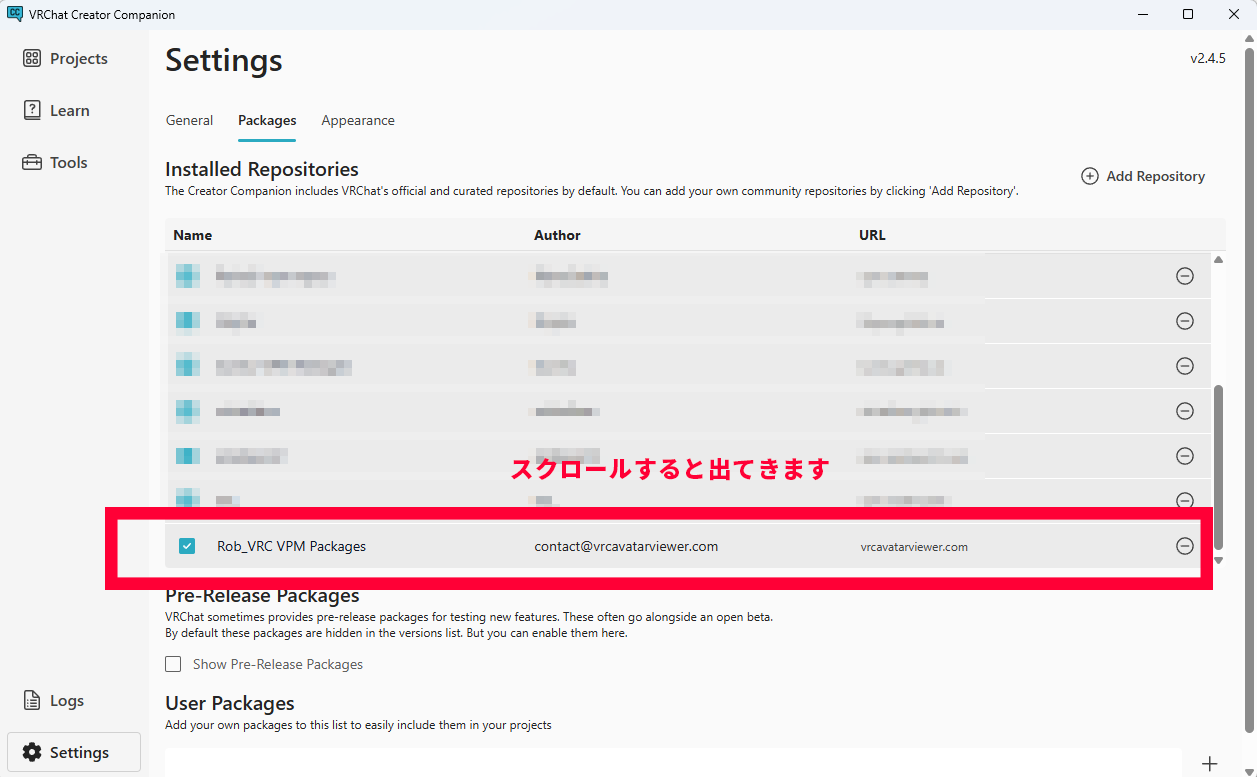
Enter the following URL and add it
https://vrcavatarviewer.com/vpm/index.json
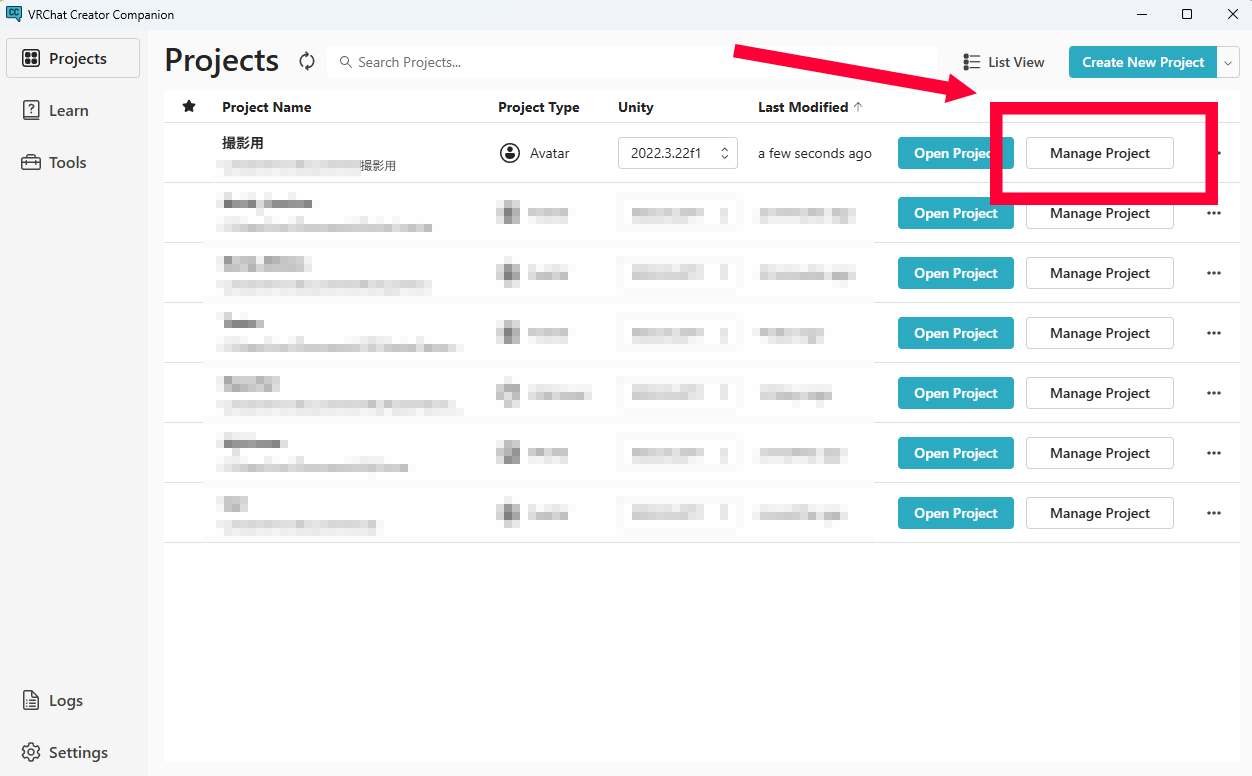
- In the VCC project list, open
Manage Projectfor your avatar project
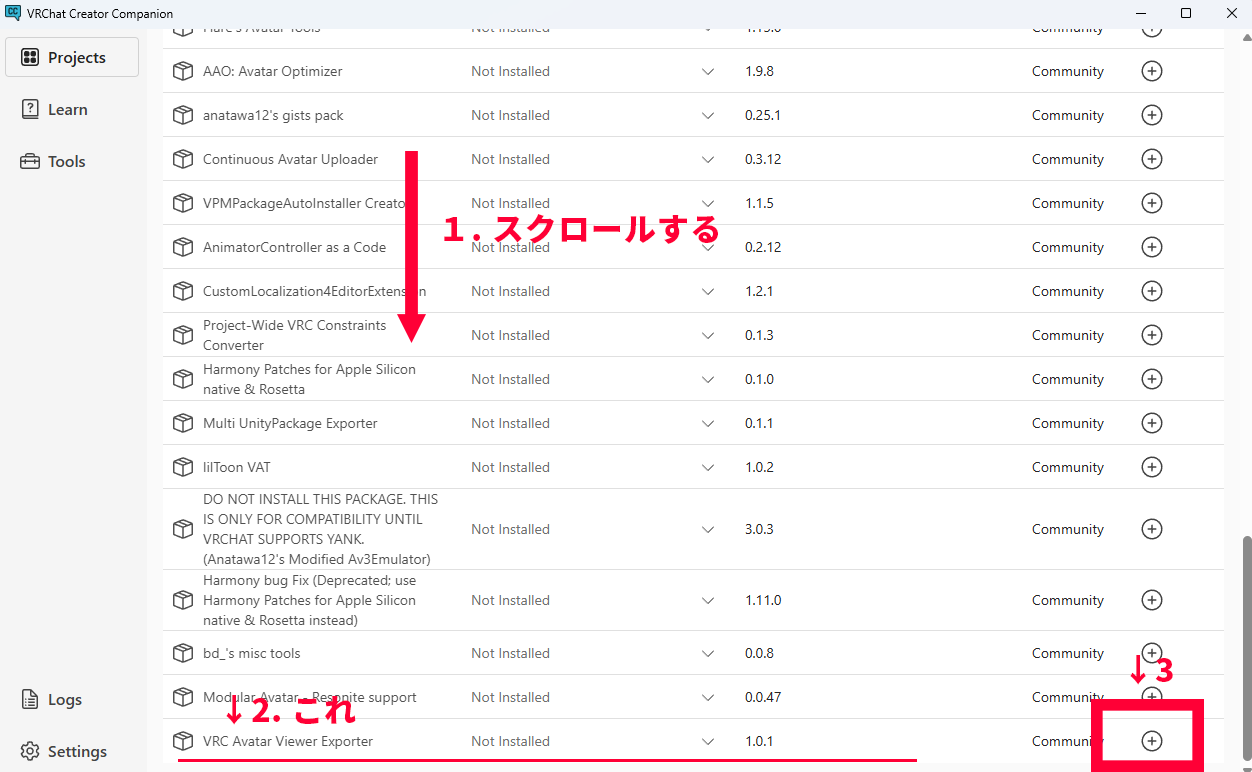
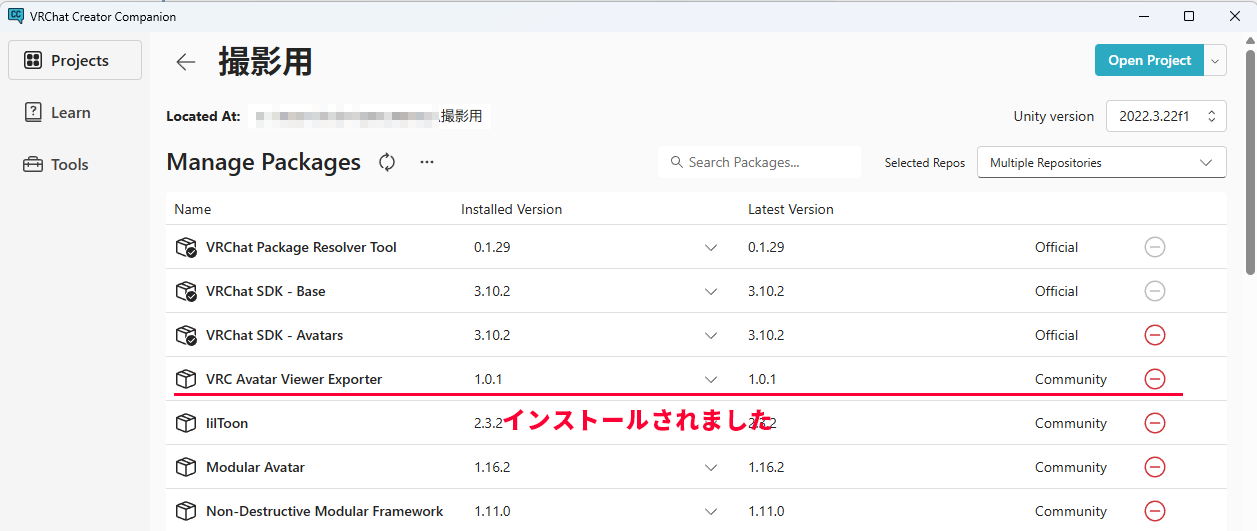
- Find "VRC Avatar Viewer Exporter" in the package list and install it with the
+button
Export Your Avatar
VRC Avatar Viewer handles avatars in its own dedicated format,
.avab. Use the exporter to convert your avatar to this format.
Your original avatar data is never modified, so you can work without worry.
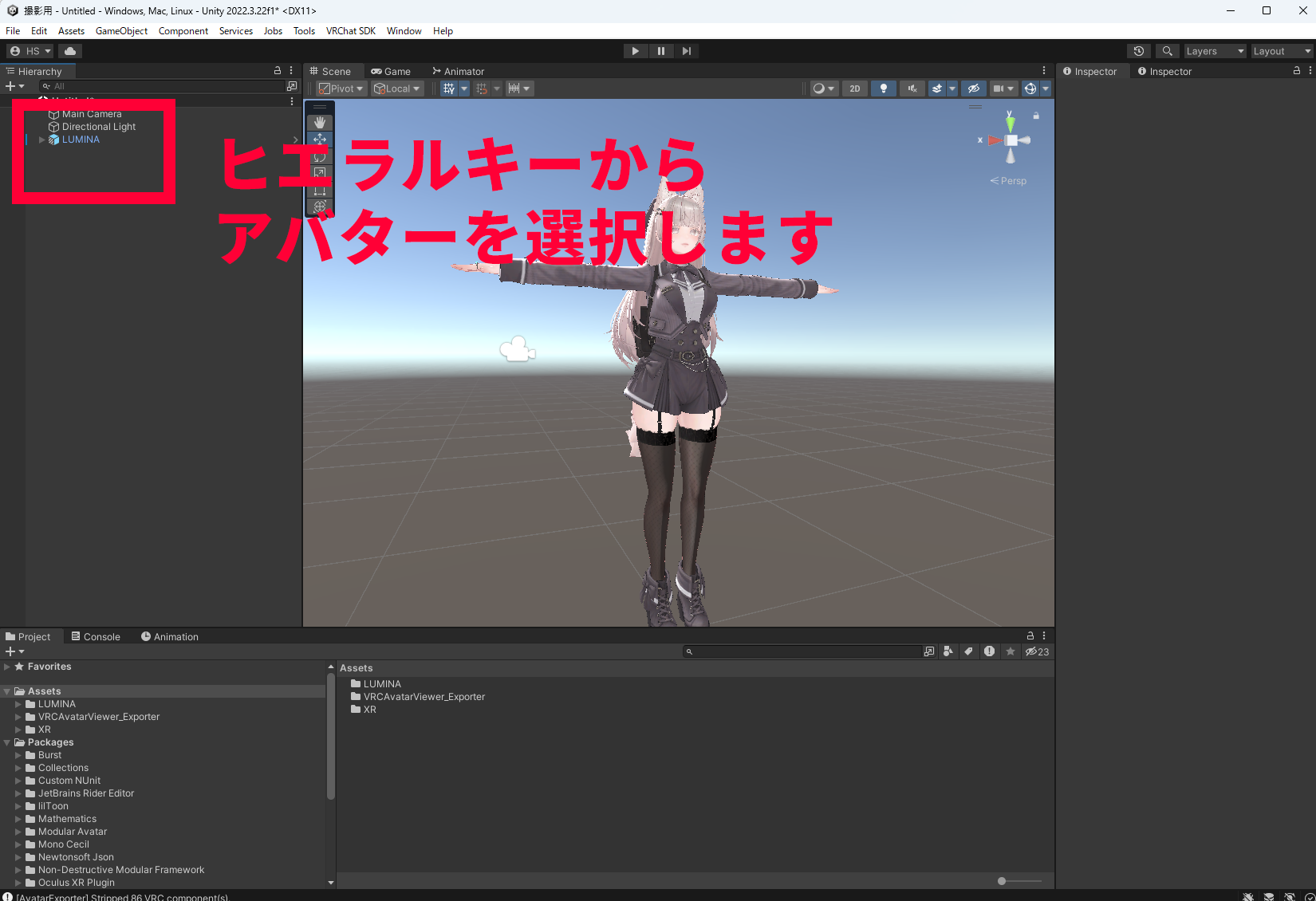
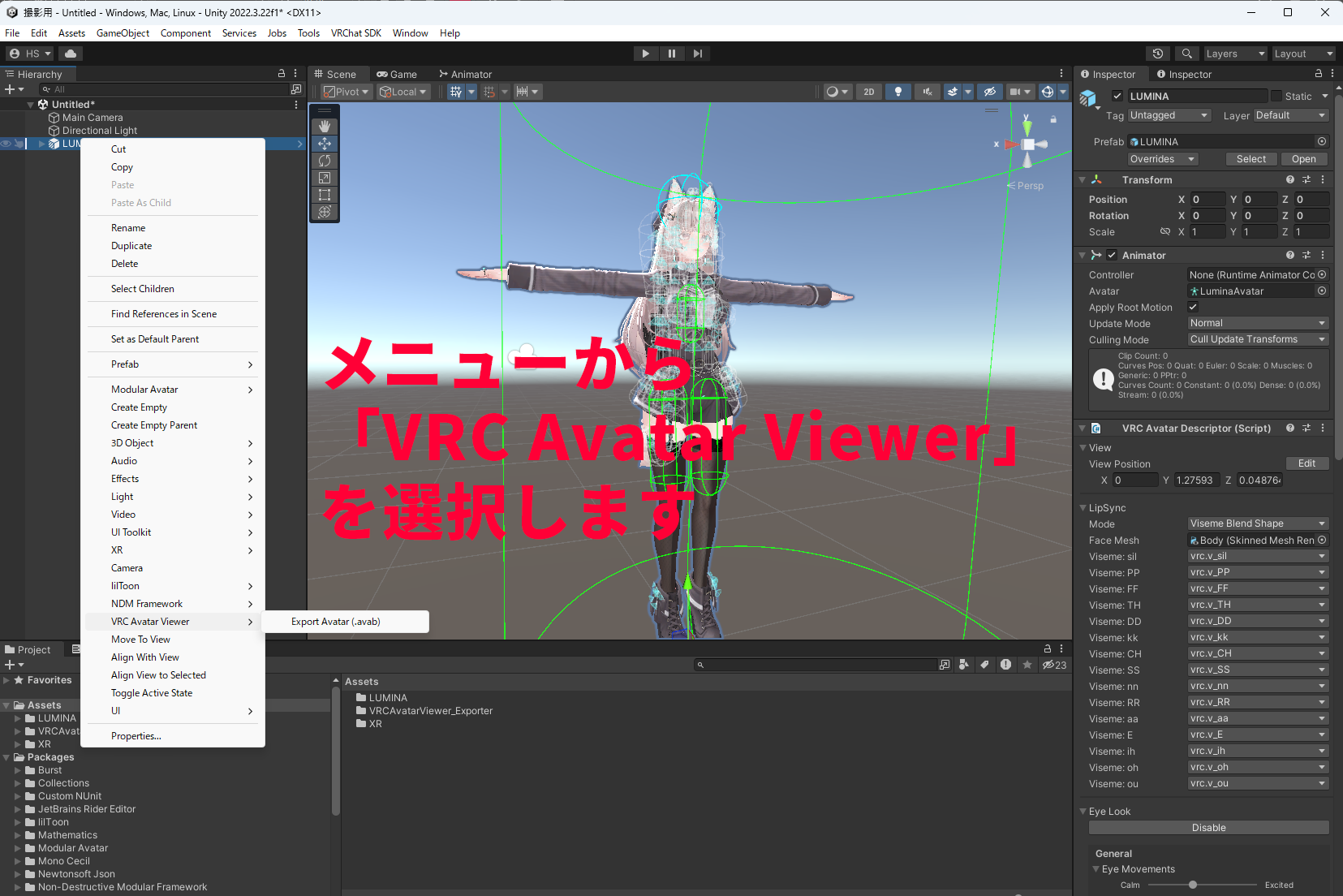
- In Unity's Hierarchy (the object list on the left side of the screen), select the avatar you want to export Click the avatar's root (the topmost parent object)
- With it selected, right-click →
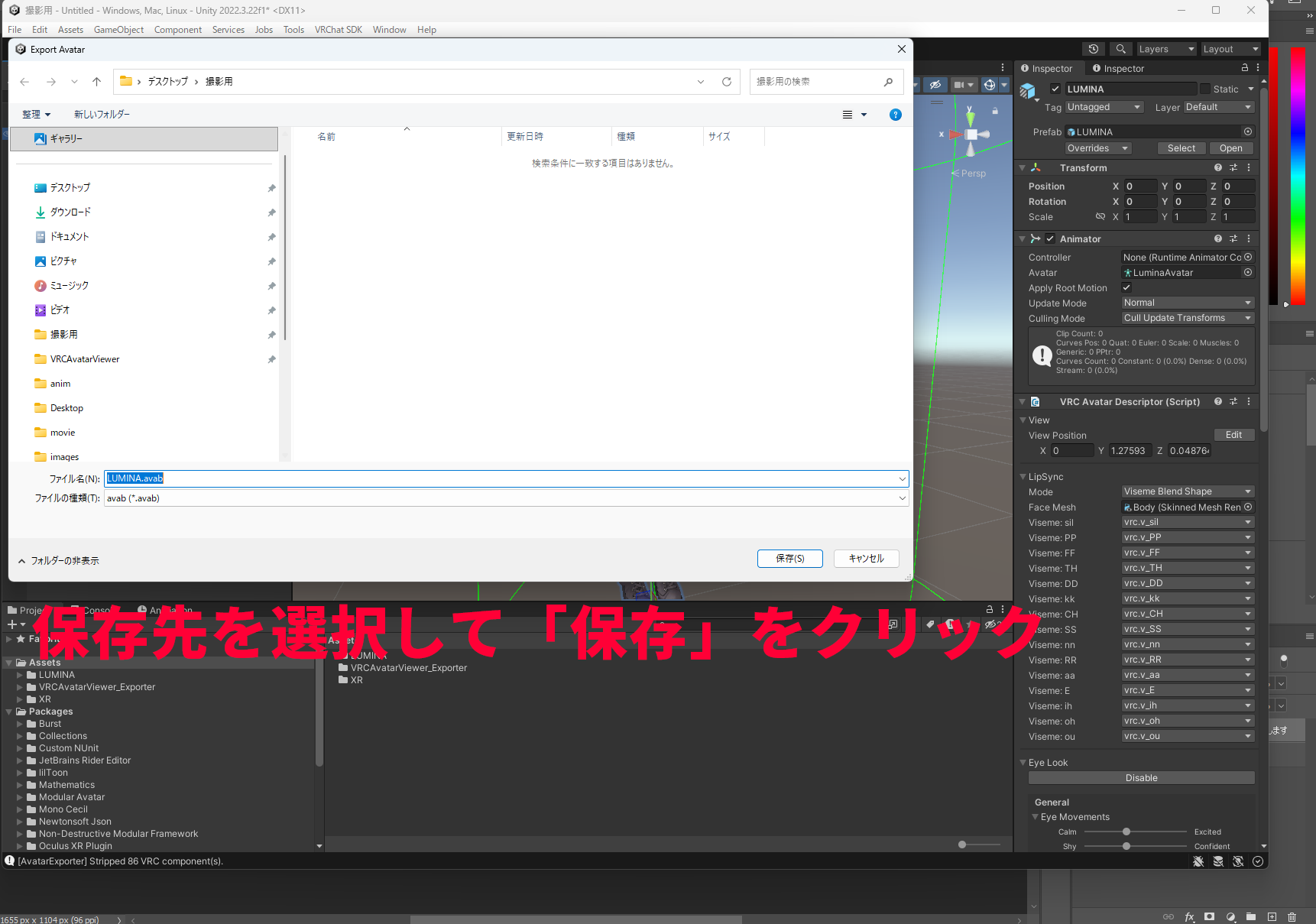
VRC Avatar Viewer→Export Avatar (.avab) - A save dialog appears. Choose a location and file name, then click "Save"
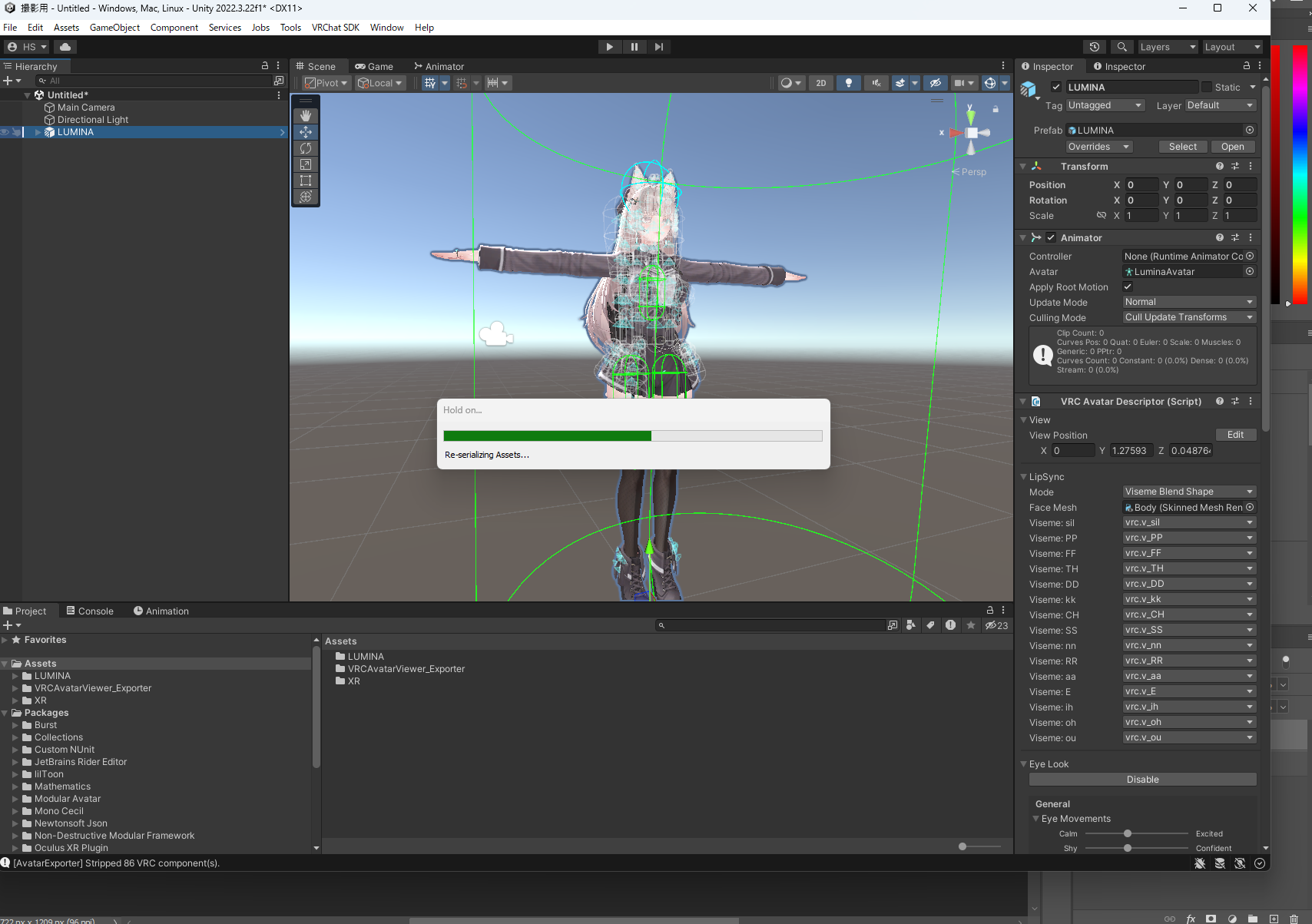
- A progress bar appears while the export runs
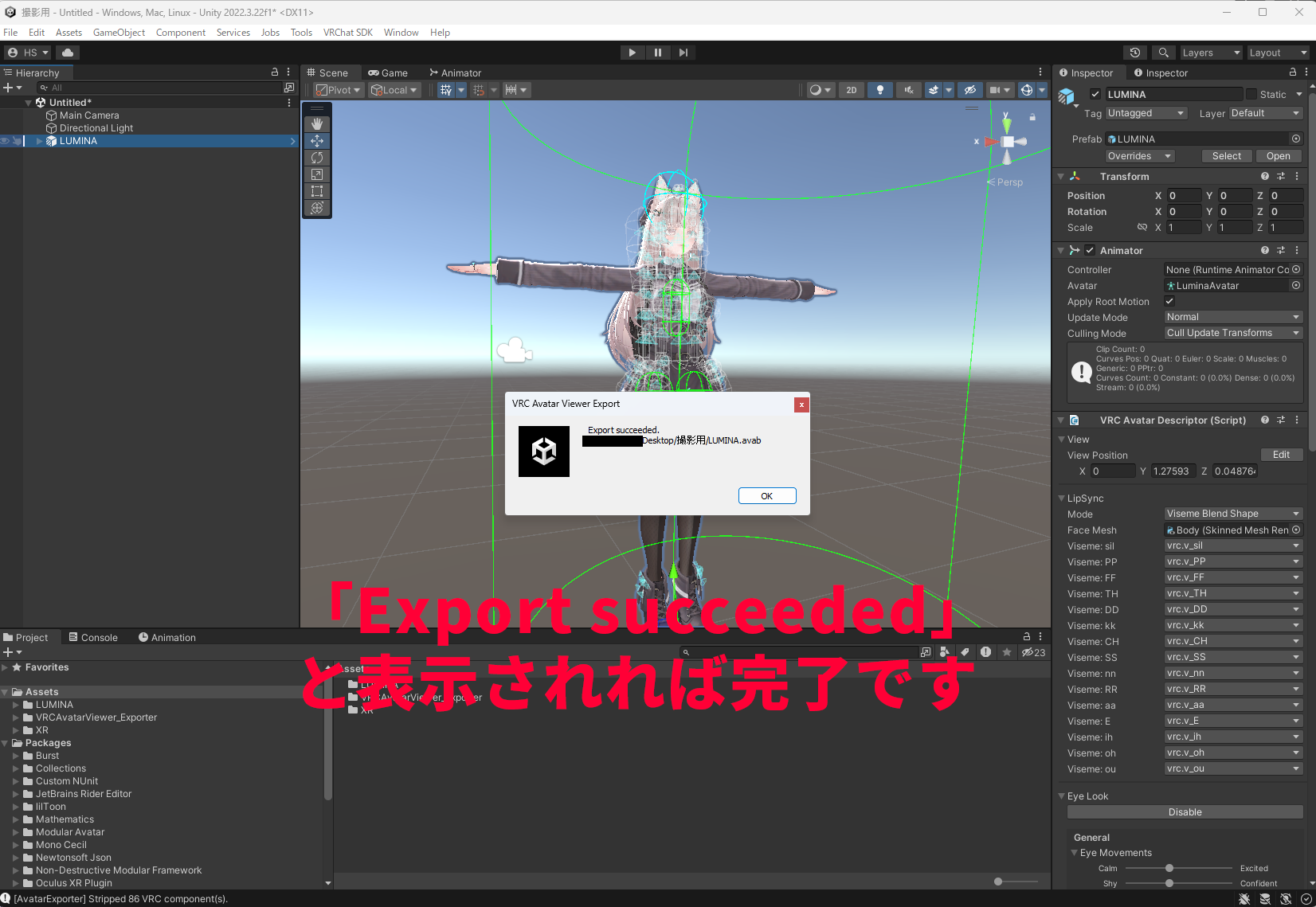
- When "Export succeeded." is displayed, you're done
- You can save the exported
.avabfile anywhere you like, and even take it to another PC. - If you change your avatar, export it again (overwriting the old file is fine)
- The viewer can list all avatars in a folder you choose, so it's handy to keep them in one folder
View Your Avatar in the Viewer
Let's open the exported .avab file in the viewer. .vrm files are supported too. There are three ways to do this.
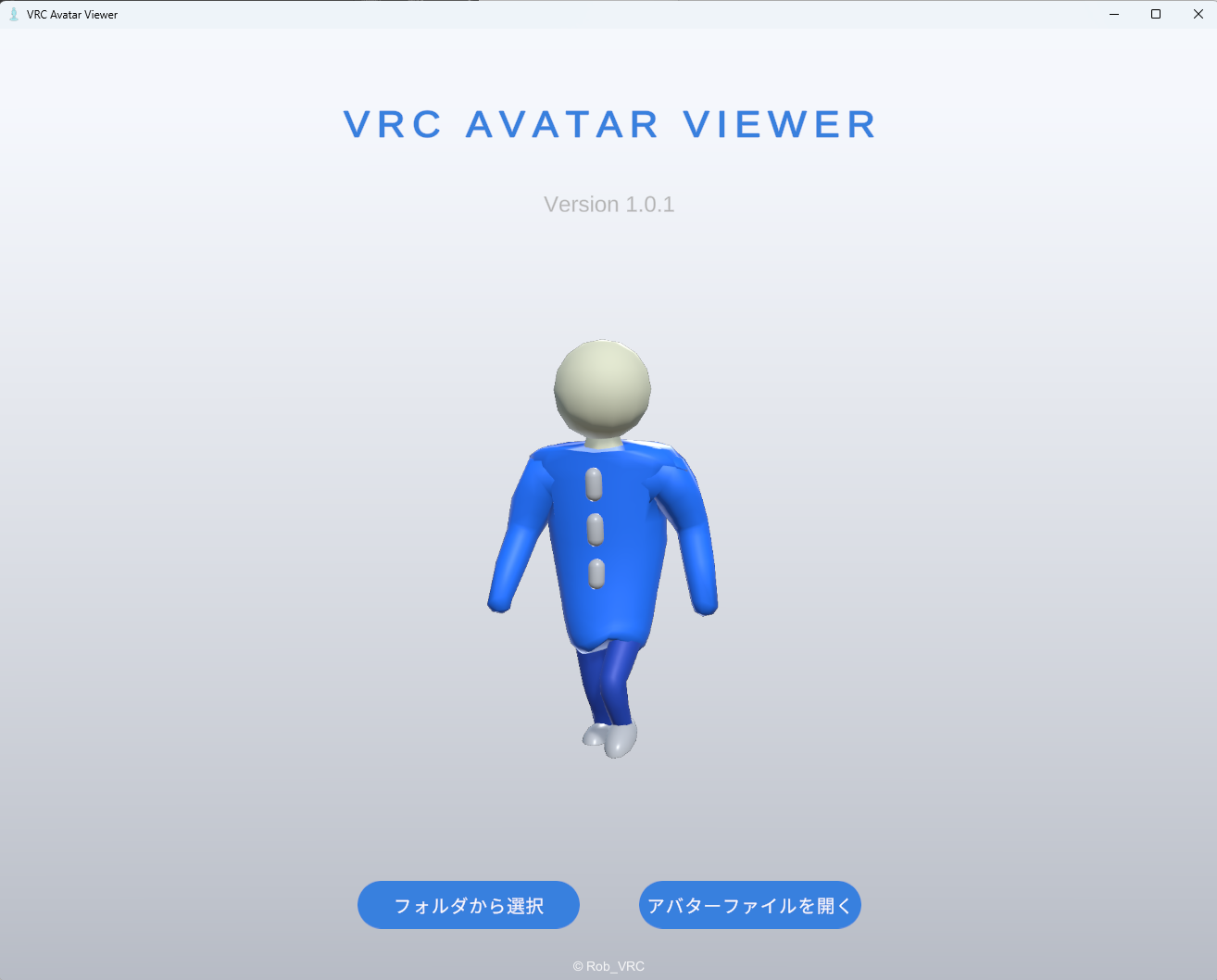
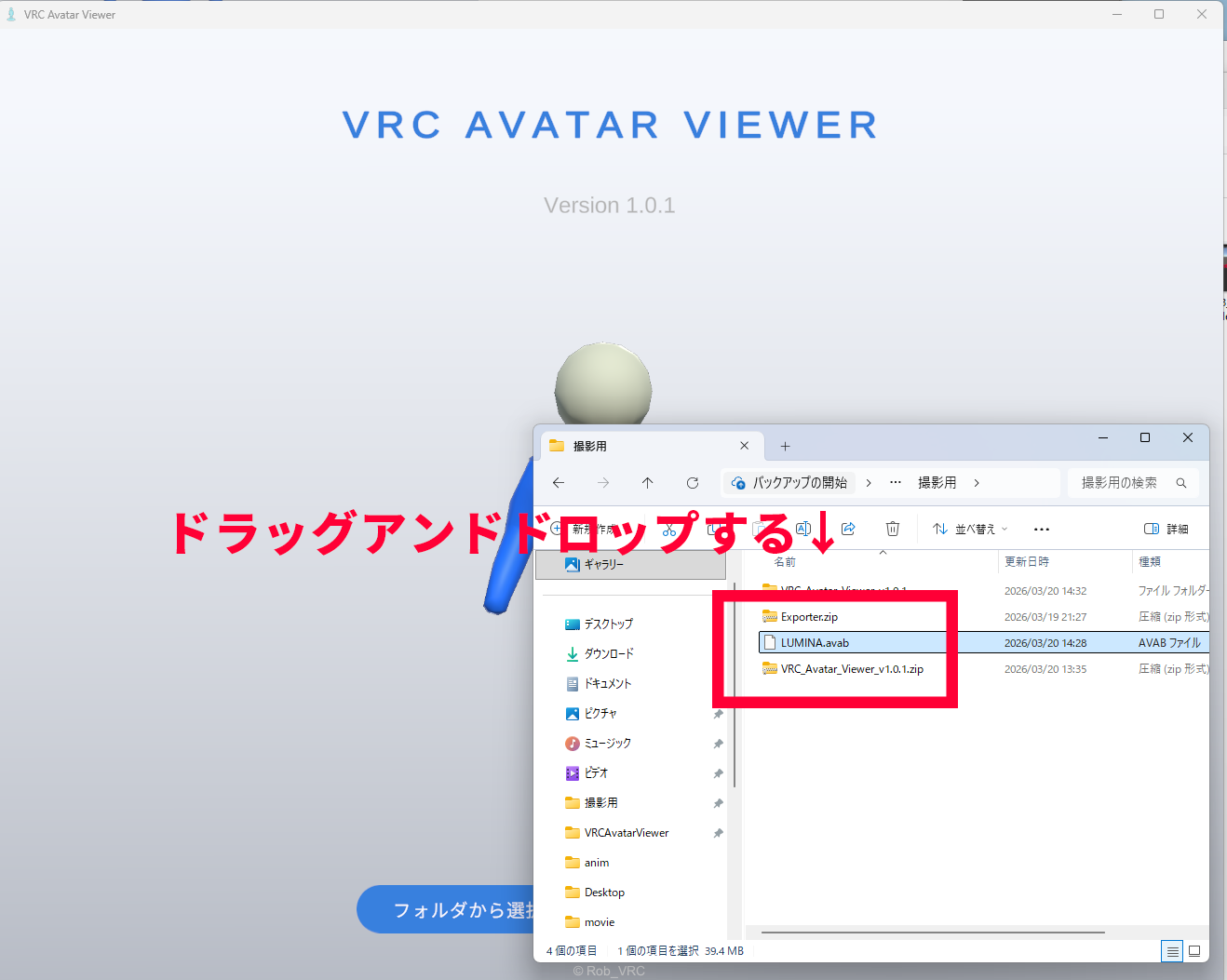
Method A: Drag and drop (easiest, recommended)
- Launch VRC Avatar Viewer
- Drag and drop the
.avabfile directly onto the viewer window - Your avatar appears
Method B: The "Open Avatar File" button
- Launch VRC Avatar Viewer
- Click the "Open Avatar File" button at the bottom of the screen
- In the file dialog, select the
.avabfile and click "Open" - Your avatar appears
Method C: Pick from a folder list
- Keep your
.avabfiles together in one folder - Launch VRC Avatar Viewer
- Click the "Select from Folder" button at the bottom of the screen
- Select the folder containing your
.avabfiles - The avatar list screen opens, showing your avatars with thumbnails
- If needed, narrow down by avatar name using the search box in the upper right
- Click the avatar you want to view
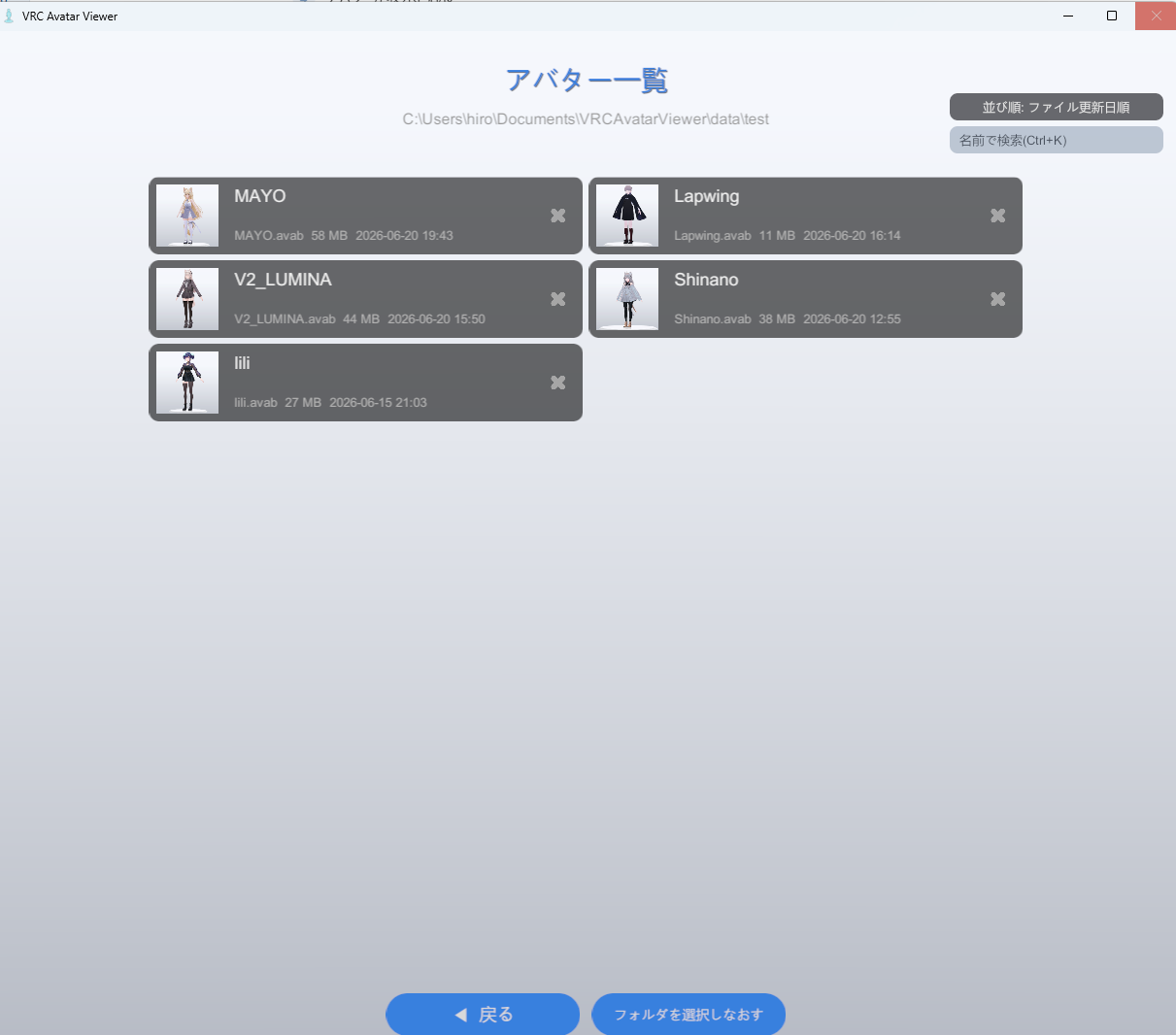
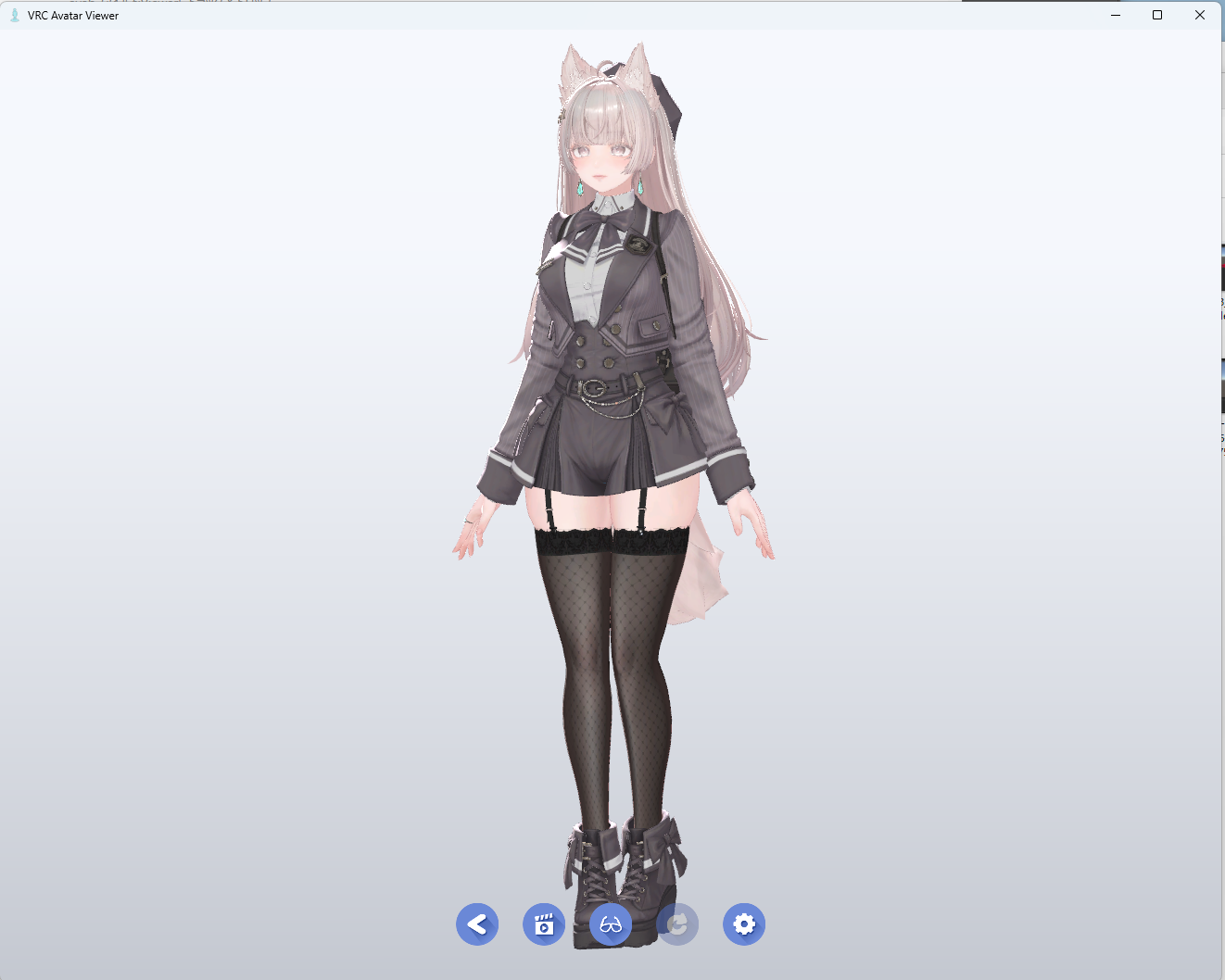
- The folder you select in Method C is remembered, so you can open the avatar list right away the next time you launch the viewer
- In the avatar list, use "Back" or "Reselect Folder" at the bottom of the screen to return to the previous screen or choose a different folder
- While searching, "Filter active" is shown below the folder display. Click the "×" on the right side of the search box to clear your input
- If you export over an existing
.avabfile, the viewer reloads it automatically (no need to open it again) - Files in
.vrmformat are also supported
Basic Controls
Once your avatar is displayed, use the mouse to move around and take a look.
Camera Controls
| Input | Action |
|---|---|
| Left-drag | Rotate the avatar |
| Right-drag | Pan the camera (swaying parts like hair react) |
| Mouse wheel | Zoom in/out |
| Double-click | Reset the camera |
Other Features
From the toolbar, you can also use "background transparent mode," which makes the background transparent so only your avatar appears on the desktop, play animations from .anim / .vrma files, and open settings menus for lighting, background color, and more.