VRCFaceTracking Integration
Use VRChat face tracking directly in the viewer app
VRCFaceTracking is a Windows application that supports face tracking for VRChat. It is compatible with many face tracking devices.
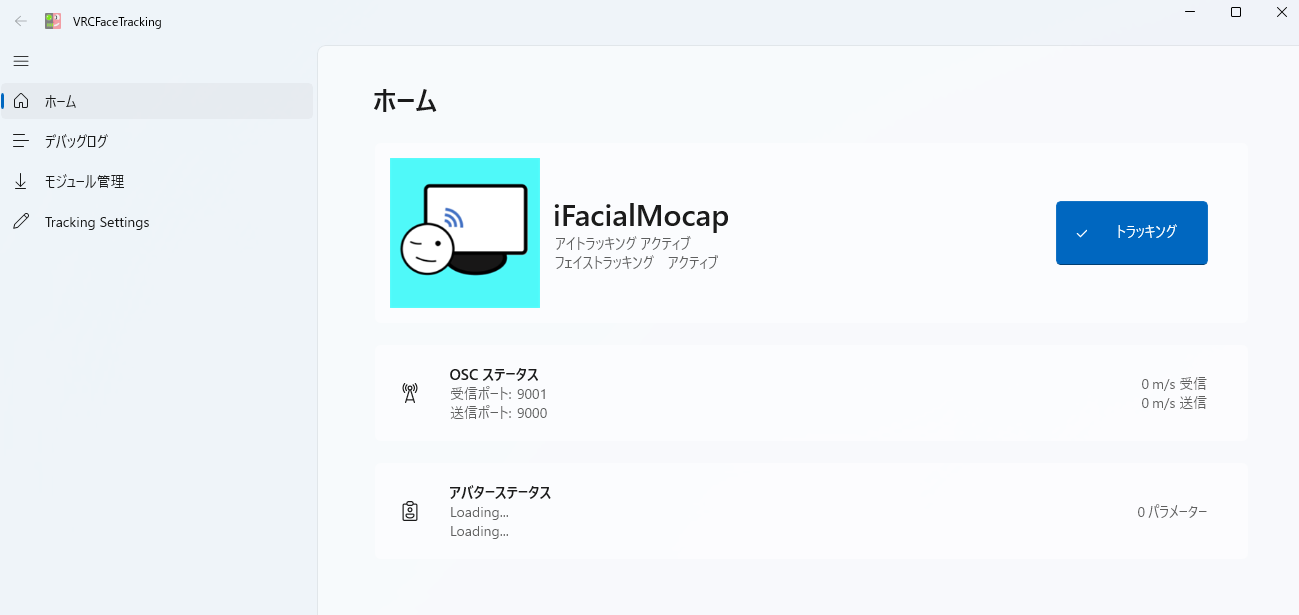
VRC Avatar Viewer has a VRChat-compatible OSC receiving feature, which allows you to connect VRCFaceTracking to the viewer app and send facial expression data to reproduce it.
VRChat OSC / UDP→ [VRC Avatar Viewer]
- The capture app is a viewer app-exclusive tool that captures facial expressions using a "webcam + iFacialMocap" and can also capture body and arm movements at the same time
- VRCFaceTracking on this page is a method of repurposing the VRChat face tracking infrastructure in the viewer app, and handles facial expressions only
- By combining it with the capture app, you can create a setup where the capture app handles body movement and VRCFaceTracking handles facial expressions
Requirements
- VRC Avatar Viewer (main app)
- VRCFaceTracking 5.x (Windows, free)
- A VRCFaceTracking-compatible avatar — The avatar's FX layer must have VRCFT parameters integrated
- Face tracking device (one you already own)
- For details on installing VRCFaceTracking itself and selecting modules, please refer to the VRCFaceTracking official documentation. This page only covers the integration with the viewer app
- For VRCFaceTracking-compatible avatars, many add-ons are available on the BOOTH face tracking page
Setting Up VRCFaceTracking
First, get VRCFaceTracking working with VRChat.
2-1. Installation and Module Setup
- Install VRCFaceTracking by following the official documentation setup instructions
- Install the module that corresponds to your face tracker device (e.g., ALXR module for Quest Pro / SRanipal module for Vive Facial Tracker, etc.)
- Launch VRCFaceTracking and confirm that facial expression data is being captured from the face tracker (i.e., the various parameters on screen are moving)
- This page does not cover the setup of VRCFaceTracking itself in detail. If you have trouble with installation or module selection, please refer to the official documentation or the Discord community
Viewer App Settings
The settings on the viewer app side are as follows.
- Display an avatar (.avab or .vrm) in the viewer app
- Press the Streaming Mode button in the toolbar to open the streaming panel
- In the "Motion Receiving" section, switch "Face Tracking" to "VRCFT"
- Press the "Receive" button to turn it ON
This will cause the viewer app to open a VRChat-compatible OSC listener. From the VRCFaceTracking side, the viewer app will appear as VRChat-Client-VRCAvatarViewer-XXXX and will be connected automatically.
- Since the same port (
9000) as VRChat itself is used, the viewer app cannot receive data while VRChat is running (whichever opens first will claim the port). If you want to use both simultaneously, change the "VRChat OSC Port" on the viewer app side to a different value - If "Face Tracking" is still set to VRM Standard or Perfect Sync, the VRChat OSC listener will not open. Make sure to switch it to VRCFT
Verification
On the VRCFaceTracking screen, verify that the viewer app is recognized as a connected target. If [avatar name] - VRC Avatar Viewer is displayed in the Avatar Status, the connection is successful.
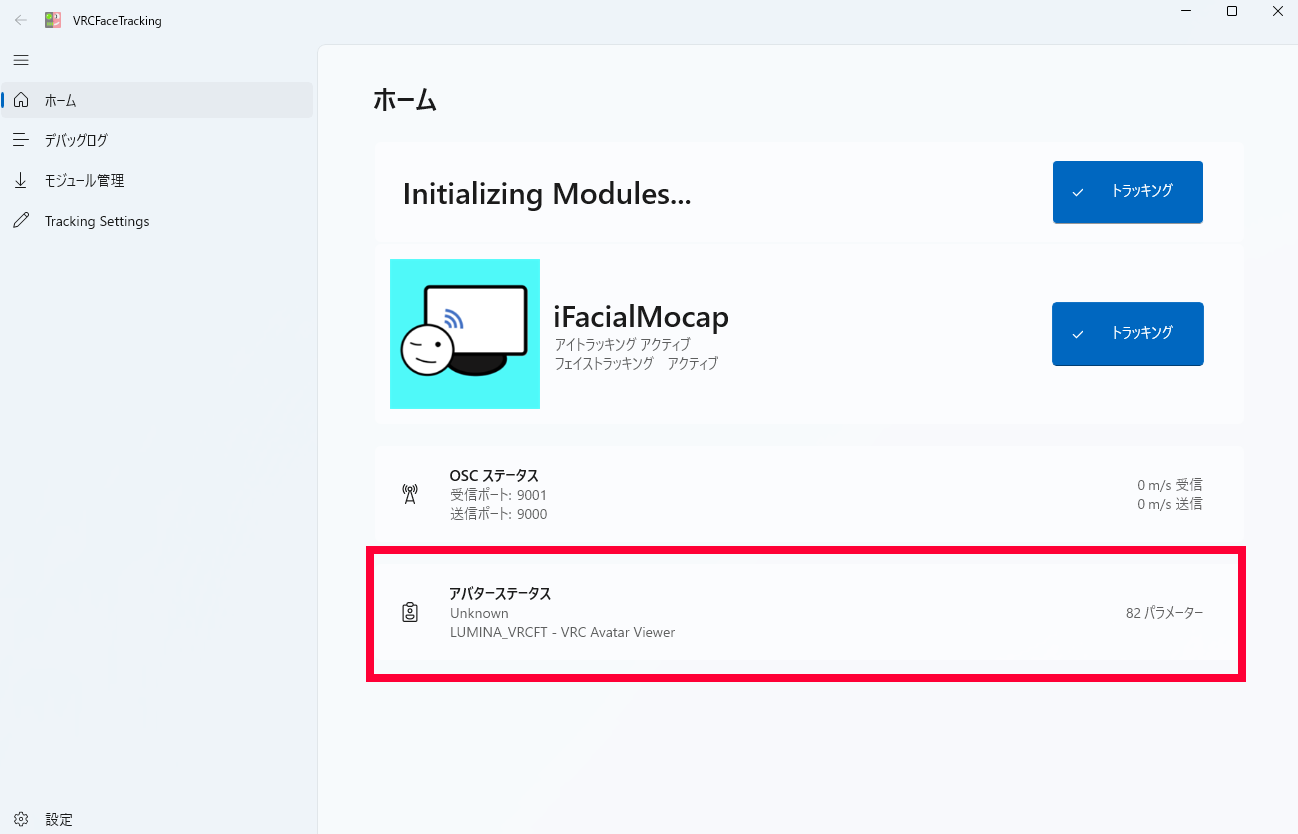
- Try blinking, opening and closing your mouth, moving your gaze, etc.
- If the avatar's facial expressions in the viewer app respond in sync, it is working correctly
If it doesn't work
- VRCFaceTracking does not detect the viewer app Check that the viewer app has "Face Tracking = VRCFT" and "Receive = ON" enabled.
-
A dialog appears saying the port cannot be opened
Another application (including VRChat itself) may be using VRChat OSC port
9000. Change the "VRChat OSC Port" to a different value and then turn "Receive" ON again