Handy Viewer App Features
Lighting, animation playback, gestures, transparent background, FX parameters, and more
The viewer app does more than just display avatars — it also comes with handy features that make streaming and taking screenshots easier. This page gives an overview of the handy features unique to the viewer app.
- Toolbar — Buttons at the bottom of the screen that open frequently used features
- Animation Player — Play a single animation file or a playlist
- Lighting — Freely adjust the direction, brightness, and color of the light
- Gesture / Expression Switching — Switch hand signs / facial expressions with Shift + F1–F8
- Cursor Gaze Mode — Make the avatar's eyes follow the mouse cursor
- Pedestal Visibility, Size, and Height — Adjust the pedestal under the avatar's feet and the avatar's height
- VRChat FX Parameters — Switch the avatar's expressions, outfits, and more
- Transparent Background Mode — Float just the avatar on your desktop
- Avatar See-Through Mode — Make the avatar semi-transparent under the mouse so you can use what's behind it
- Lower FPS when idle — Reduce GPU load when nothing is moving
- Changing the Display Language — Change the UI language
- Handy Keyboard Shortcuts — List of keyboard controls
Toolbar
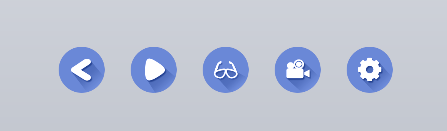
The row of round buttons shown at the bottom of the screen. Many of the features introduced on this page — animation playback, transparent background, streaming mode, various settings, and more — are opened from this toolbar.
Main Buttons
| Button | Function |
|---|---|
| Back | Returns to the avatar list or the startup screen |
| Animation Player | Opens the Animation Player panel, where you can play a single animation file, play a playlist, and adjust the avatar's display position |
| Transparent Background | Turns Transparent Background Mode ON / OFF |
| Streaming Mode | Opens VMC / VRChat OSC reception and the camera / face tracking settings for streaming |
| Settings Menu | Opens Lighting, Cursor Gaze Mode, Pedestal, VRChat FX Parameters, Lower FPS when idle, Display Language, and more |
- The toolbar appears when you move the mouse near the bottom of the screen
- If you opened an avatar file directly, an Open Avatar File button may appear to the right of the Back button
Animation Player
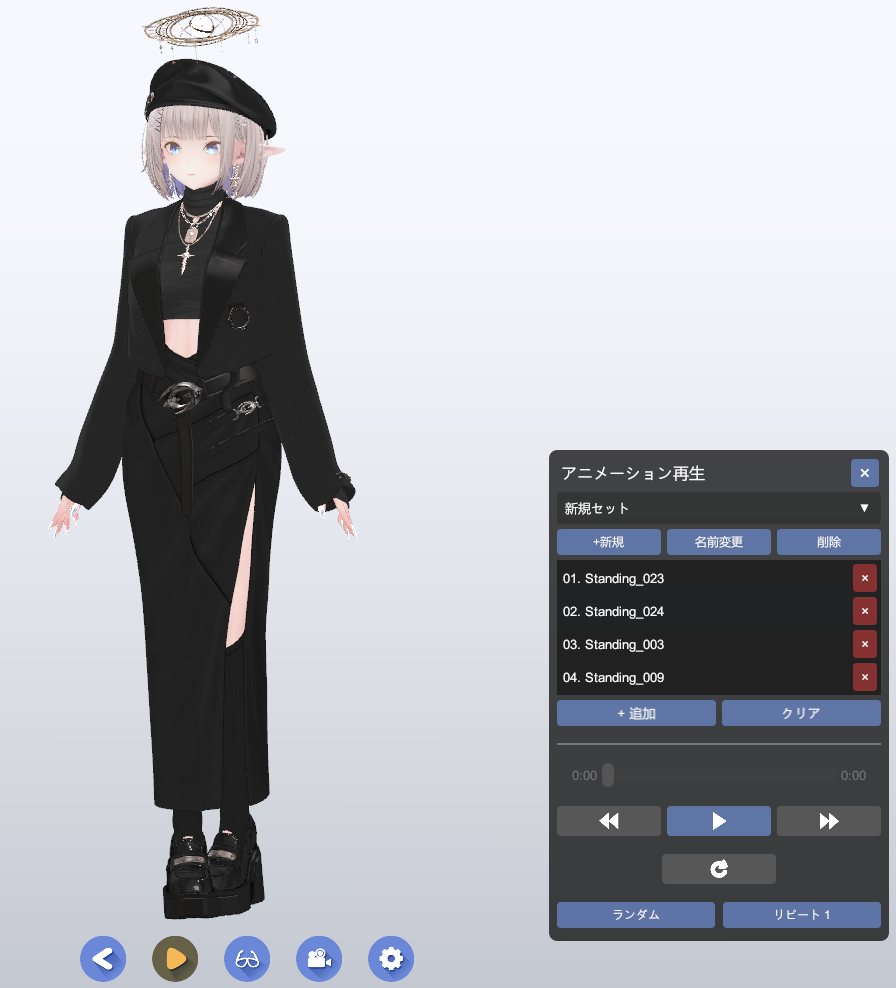
Loads animation files (.anim / .vrma) and plays poses and motions on the avatar. You can switch between Single, which plays one file right away, and Playlist, which plays several files in a row.
How to Use
- Open the Animation Player panel from the toolbar
- In Single, load one animation file with the Open button or by drag and drop
- In Playlist, add multiple animation files and play them in order
- Control playback with the play, pause, previous, next, and loop buttons
Playback and Display Position
- Single: Use this when you want to quickly check a single animation
- Playlist: Save multiple animations, then play them back to back or reorder them
- Set: Save up to 10 playlists, so you can use different ones for different scenes
- Pedestal size: Adjusts the size of the pedestal shown under the avatar's feet
- Y offset: Adjusts the avatar's height during animation playback. Use it when accessories or outfits make the avatar float above the pedestal
- Face Forward: Turns the avatar back to face the front
- Each set can hold up to 10 entries
- The set you selected last time is restored automatically
Lighting
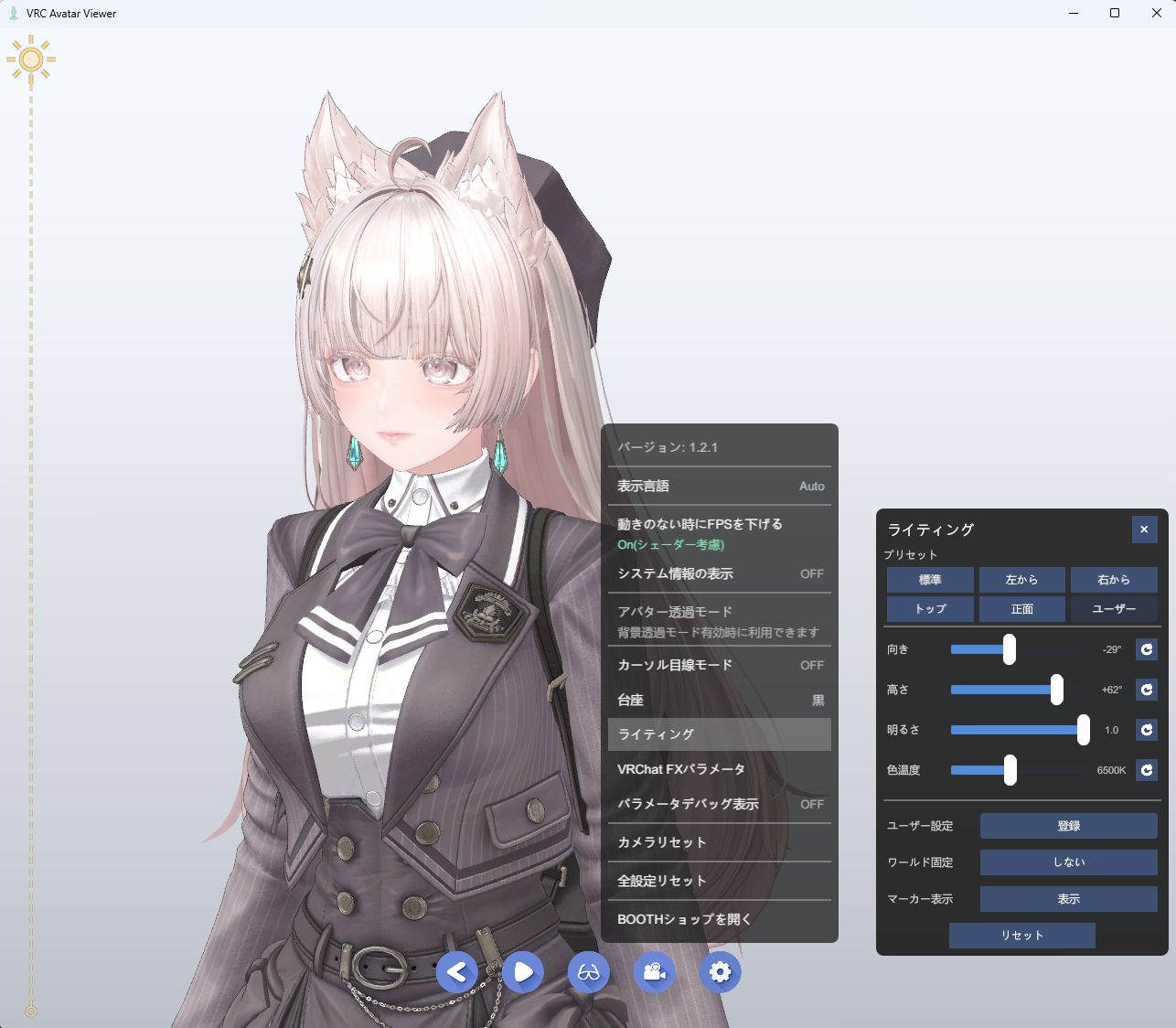
Lets you freely adjust the direction, brightness, and color of the main light that illuminates the avatar. It's useful for setting the mood when streaming or taking screenshots, or for finding the lighting that shows off your avatar best. Your settings are kept even after you close the app.
How to Use
- Open the Settings Menu on the toolbar
- Select "Lighting" to open the lighting panel
- Adjust the light with the preset buttons and sliders
Adjustable Settings
| Setting | Description |
|---|---|
| Presets | Switch between 6 presets with one click: "Default / Left / Right / Top / Front / User". Brightness and color temperature stay as they are |
| Direction | Adjusts the horizontal direction the light comes from, with the avatar's front as 0° |
| Height | Adjusts the vertical angle of the light. Negative values light the avatar from below, and 90° lights it from directly above |
| Brightness | Adjusts the light's brightness from 0 to 1.0. The background's darkness also changes to match |
| Color temperature | Adjusts the color from warm to white (about 4200K–9600K). The default is 6500K |
| User settings | Saves the current direction, height, brightness, and color temperature so you can restore them later |
| Light lock | Switches between World fixed / Avatar fixed. With Avatar fixed, the lighting on the avatar stays the same even when you rotate it on the turntable |
| Marker | Shows the light's direction as a 3D marker (similar to Unity's Directional Light), so you can see at a glance where the light is coming from |
- The Reset button next to each slider resets that item individually, and the Reset button at the bottom of the panel resets direction, height, brightness, and color temperature to their defaults all at once
Gesture / Expression Switching (Shift + F1–F8)
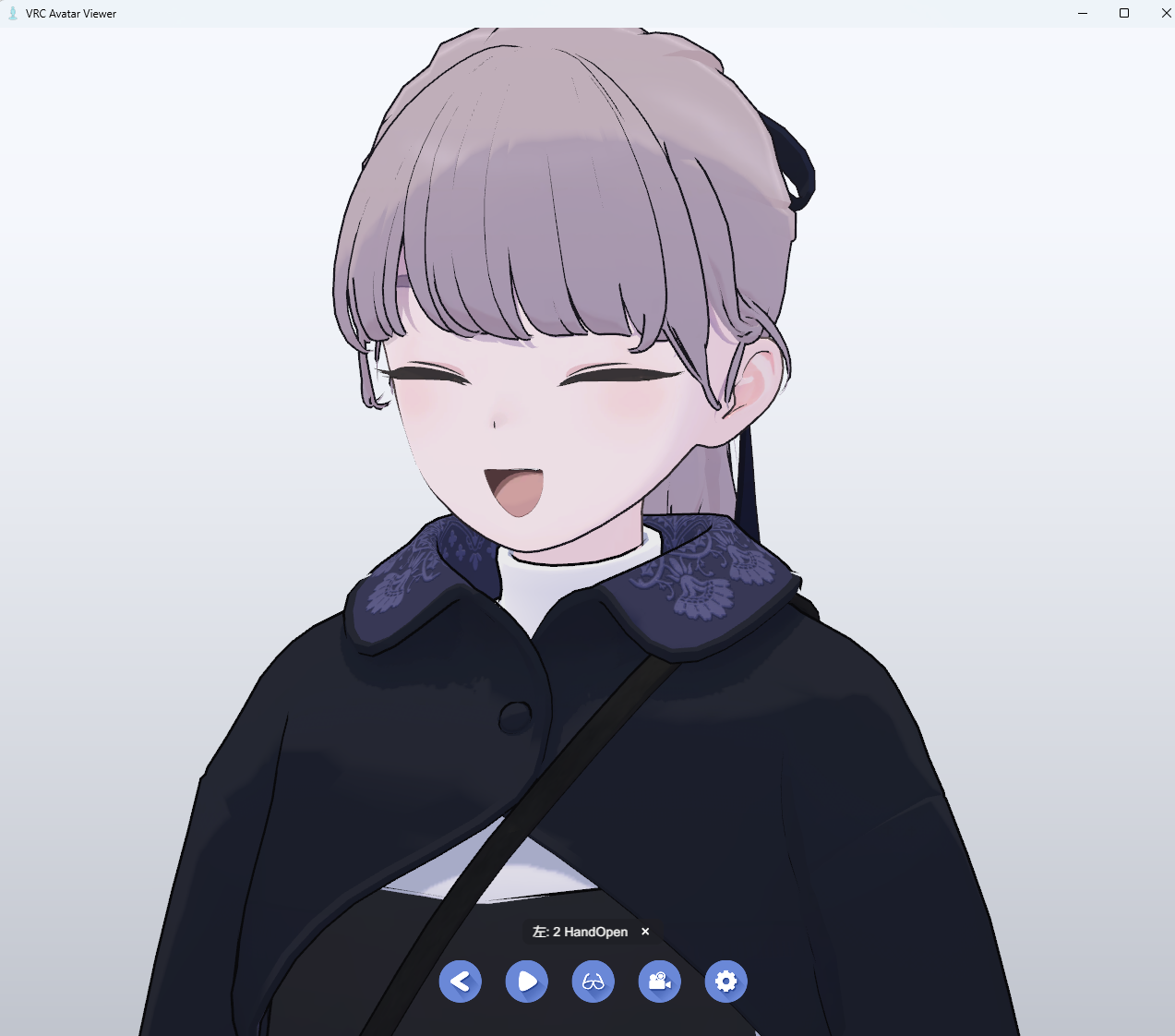
Switch the avatar's hand signs (gestures) with Shift + F1–F8. The key assignments are the same as in the VRChat desktop version, so it feels just like you're used to. Many VRChat avatars are built so that facial expressions are linked to gestures, which means you can also use this to switch expressions such as smiling or angry faces. It also works with VRM avatars if the avatar has these settings.
How to Use
- Left Shift + F1–F8: Switches the left hand's gesture (GestureLeft)
- Right Shift + F1–F8: Switches the right hand's gesture (GestureRight)
- F1 is neutral (no gesture). F2–F8 correspond to gestures such as fist, open hand, point, and peace sign
- Pressing the same key again cancels that gesture and returns to neutral
Global Hotkeys (work even when the window is inactive)
When you turn on "Always enable expression keys" in the settings menu, you can switch gestures with Shift + F1–F8 even while the viewer window is inactive (while you're using another app). This is handy when you want to change expressions while working in another app during a stream.
- Keys are not intercepted. The keys you press still reach other apps as usual, so shortcuts in other apps keep working
- On the other hand, pressing Shift + F1–F8 in another app will also change the avatar's expression. Turn it OFF when you don't need it
- The setting is saved (OFF by default)
- Which gesture produces which expression depends on how the avatar is set up. On avatars without gesture or expression settings, the appearance may not change.
- Behavior differs between VRChat avatars and VRM avatars. VRM avatars have at most 5 expressions, so only F1–F6 have an effect.
Cursor Gaze Mode
Makes the avatar's eyes follow the mouse cursor in real time. It creates the effect of the avatar looking right at you.
How to Use
- Open the Settings Menu on the toolbar
- Turn ON the "Cursor gaze mode" toggle
- Move the mouse, and the avatar's eyes follow the cursor
Pedestal Visibility, Size, and Height
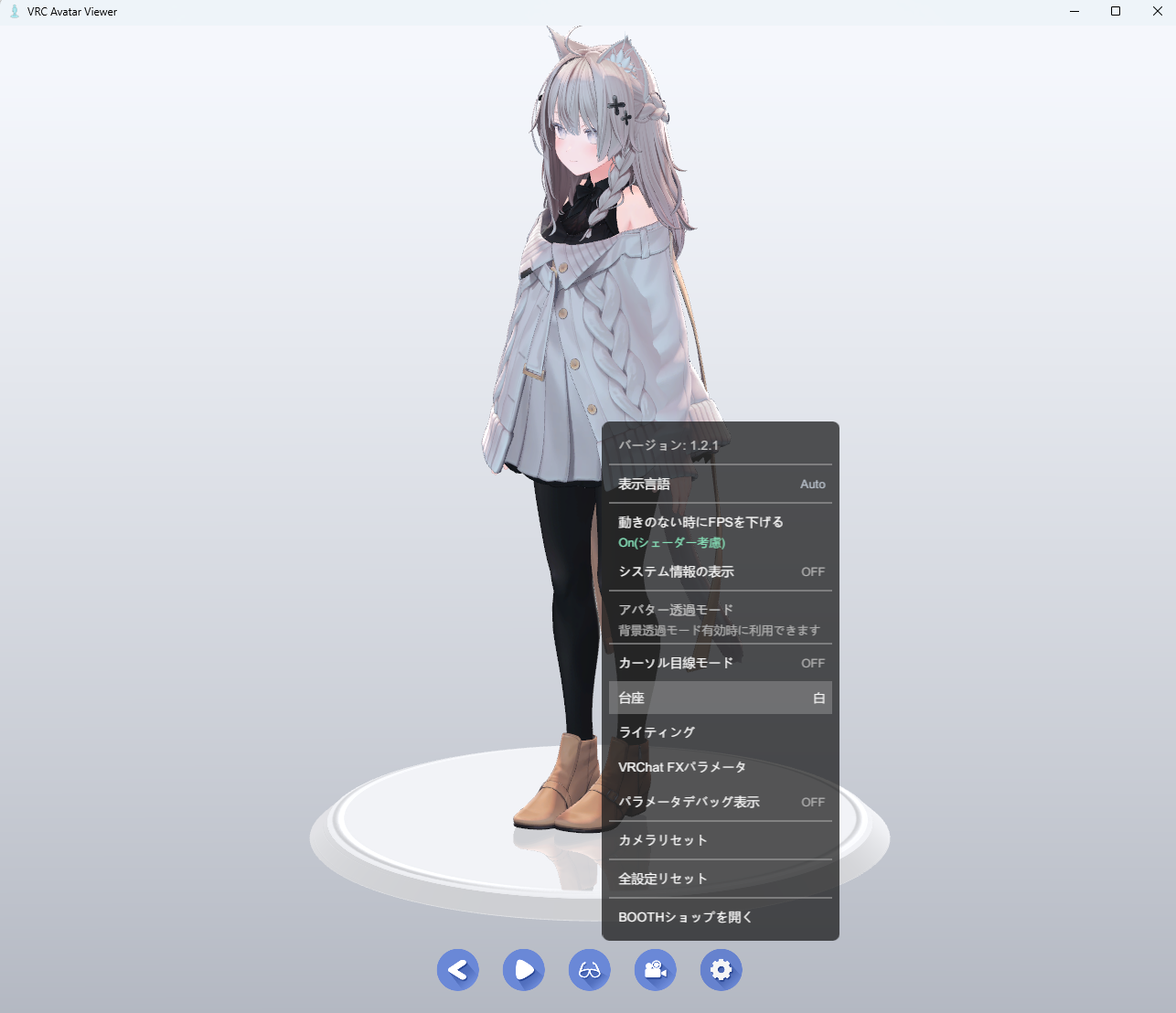
Lets you show or hide the round pedestal under the avatar's feet, and adjust its size and the avatar's height. The avatar is faintly reflected in the pedestal, giving it a figurine-like look.
How to Use
- Show / Hide: Toggle with "Pedestal" in the settings menu on the toolbar
- Size: Adjust with the "Pedestal size" slider in the Animation Player panel. The Reset button next to it returns it to the default size
- Height: Use the "Y offset" slider in the Animation Player panel to adjust the avatar's height during animation playback
- The pedestal is automatically placed at the height of the avatar's feet
VRChat FX Parameters
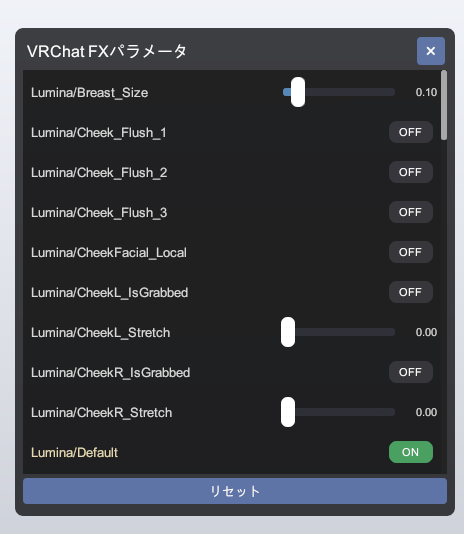
Lets you directly control the parameters for expressions, outfits, and menu items set in the avatar's FX layer from within the viewer app. Using the Expression Menu information collected by the Exporter, it mainly shows the items that appear in the avatar's VRChat menu.
How to Use
- Press the "VRChat FX Parameters" button in the menu
- A panel opens at the bottom right, listing the avatar's parameters
- Expressions view shows the items set in the Expression Menu, grouped by category
- All view lists every available FX parameter
- Control each parameter with the UI that matches its type
- Reset on the right side of a category returns the parameters in that category to their default values
- Reset All Parameters at the bottom returns all parameters to their default values
- Parameters changed from their default values are shown in yellow
- A category's reset button is enabled only when that category contains changed parameters
- Items directly under the root of the Expression Menu are shown in the Expressions category
- This button appears only when the avatar includes Expression Parameters (it can't be pressed for avatars without them)
- VRChat's internal parameters and internal parameters from tools like Modular Avatar are automatically excluded
Transparent Background Mode
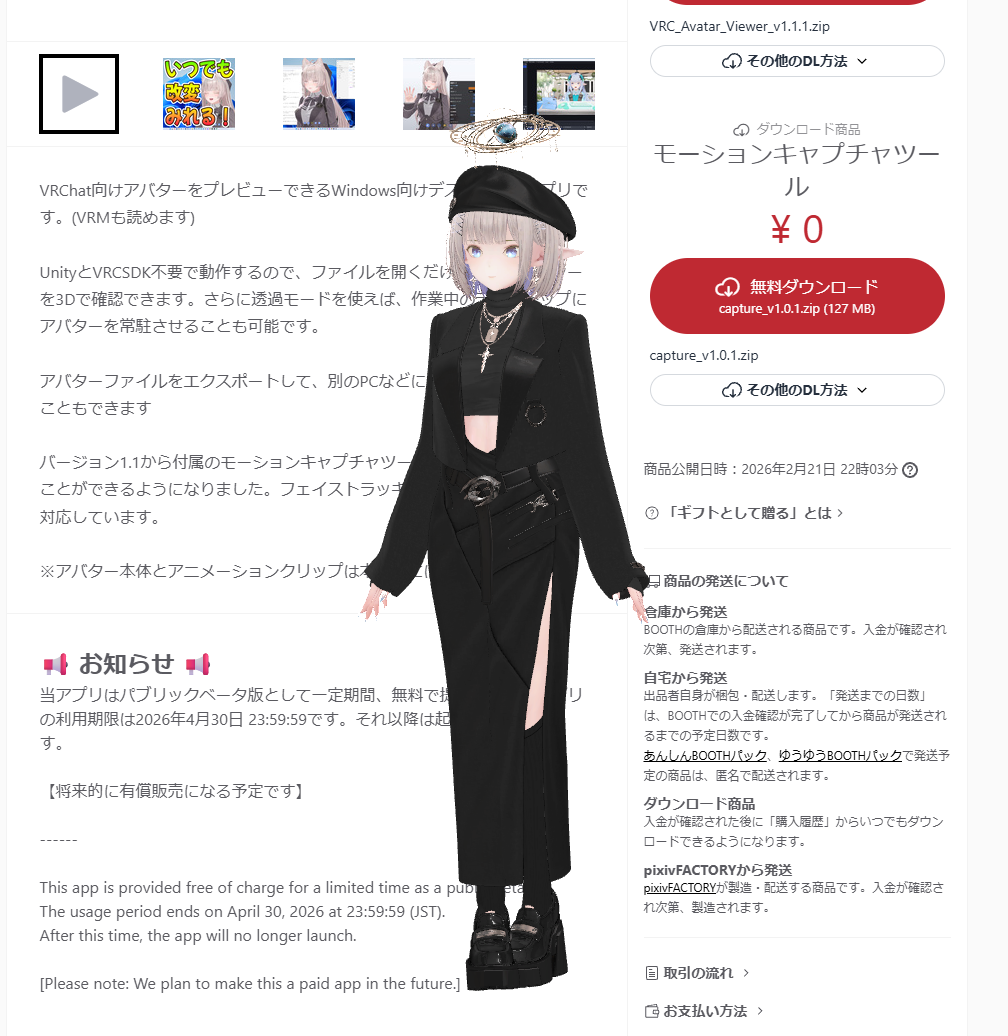
Makes the window background transparent so that only the avatar appears to float on your desktop. Useful for OBS window capture or as a desktop mascot.
How to Use
- Press the Transparent Background toggle button on the toolbar
- The window frame disappears, leaving only the avatar
- Press it again to return to normal mode
How Transparent Mode Behaves
- Always on top: The window stays on top of other windows
- Click-through: Clicks on transparent areas where the avatar isn't shown pass through to the app behind
- Hotkey: While you hold Alt / Ctrl / Shift or similar (configurable), click-through is temporarily disabled so you can control the camera
Avatar See-Through Mode
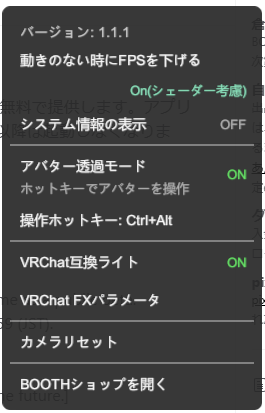
When the mouse cursor is over the avatar, this makes the avatar temporarily semi-transparent so you can use the app behind it. Handy when you want to click an app behind the avatar while using it as a desktop mascot.
How to Use
- First turn ON Transparent Background Mode (avatar see-through can't be used unless this mode is ON)
- Turn ON the "Avatar see-through mode" toggle in the menu
- When you move the mouse over the avatar, it fades out (in about 0.15 seconds) and you can interact with the app behind it
Behavior
- When the mouse moves off the avatar, it automatically returns to its original opacity
- Pressing the hotkey (Alt / Ctrl / Shift or similar, configurable) instantly returns it to 100% opacity
- When turned OFF, the avatar always stays opaque
- This feature is only available while Transparent Background Mode is ON
- If you can't remember the hotkey, quit the app once. Avatar see-through mode will be turned off
Lower FPS When Idle
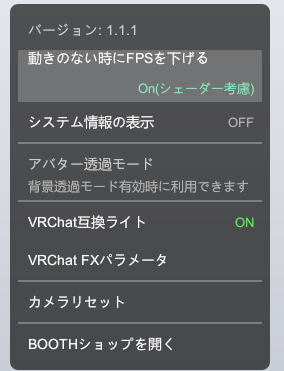
Automatically lowers the rendering FPS when the avatar isn't moving, reducing GPU load. It saves resources when you keep the window open all the time (for example, as a desktop mascot).
How to Use
- Switch it with the "Lower FPS when idle" toggle in the menu
- Choose from 3 levels
| Setting | Behavior |
|---|---|
| OFF | Always runs at maximum FPS |
| On (shader aware) | Runs at full FPS while animated shaders (shaders that change over time) are active, and throttles otherwise |
| ON | Throttles once input, animation, and the secondary-motion (jiggle) simulator have stopped moving, regardless of shaders |
While Throttled
- When idle, the frame rate drops to about 5fps
- It returns to maximum FPS when mouse input, animation playback, or secondary-motion (jiggle) simulator movement is detected
- While the window is minimized, it drops to about 1fps
Changing the Display Language
Changes the language of the viewer app's UI. In addition to Japanese, English, Simplified Chinese, Korean, and Thai are supported.
How to Use
- Open the Settings Menu on the toolbar
- Click the "Display Language" item to switch
- Options: Auto / 日本語 / English / 简体中文 / 한국어 / ไทย
- If you choose Auto, the display language is set automatically to match your OS language settings
- The language you choose is kept even after you close the app
Handy Keyboard Shortcuts
In addition to the mouse, you can also control the avatar display and the camera from the keyboard. Here are the most commonly used keys.
| Key | Function |
|---|---|
| ↑ ↓ ← → | Rotate the view (orbit) |
| Ctrl + arrow keys | Move the view sideways (pan) |
| + / - | Zoom in / Zoom out |
| Double-click | Reset the camera |
| Shift + F1–F8 | Switch gestures / expressions (→ Gesture / Expression Switching) |
| I | Show the info overlay (FPS, system info, avatar info) |