Animate Avatar (VMC Connection, OBS Integration)
Animate your avatar with a webcam and motion capture
By combining the VRC Avatar Viewer and Motion Capture for VRC Avatar Viewer (hereinafter referred to as "Capture App"), you can reflect movements from a webcam or iPhone (iFacialMocap) onto your avatar. You can also use it for streaming with OBS Studio and other tools. This guide will walk you through the setup in the following steps.
Note that the Capture App processes camera footage and iFacialMocap received data locally. Except for explicit VMC and VRChat OSC communication initiated by the user, there is no communication with external servers.
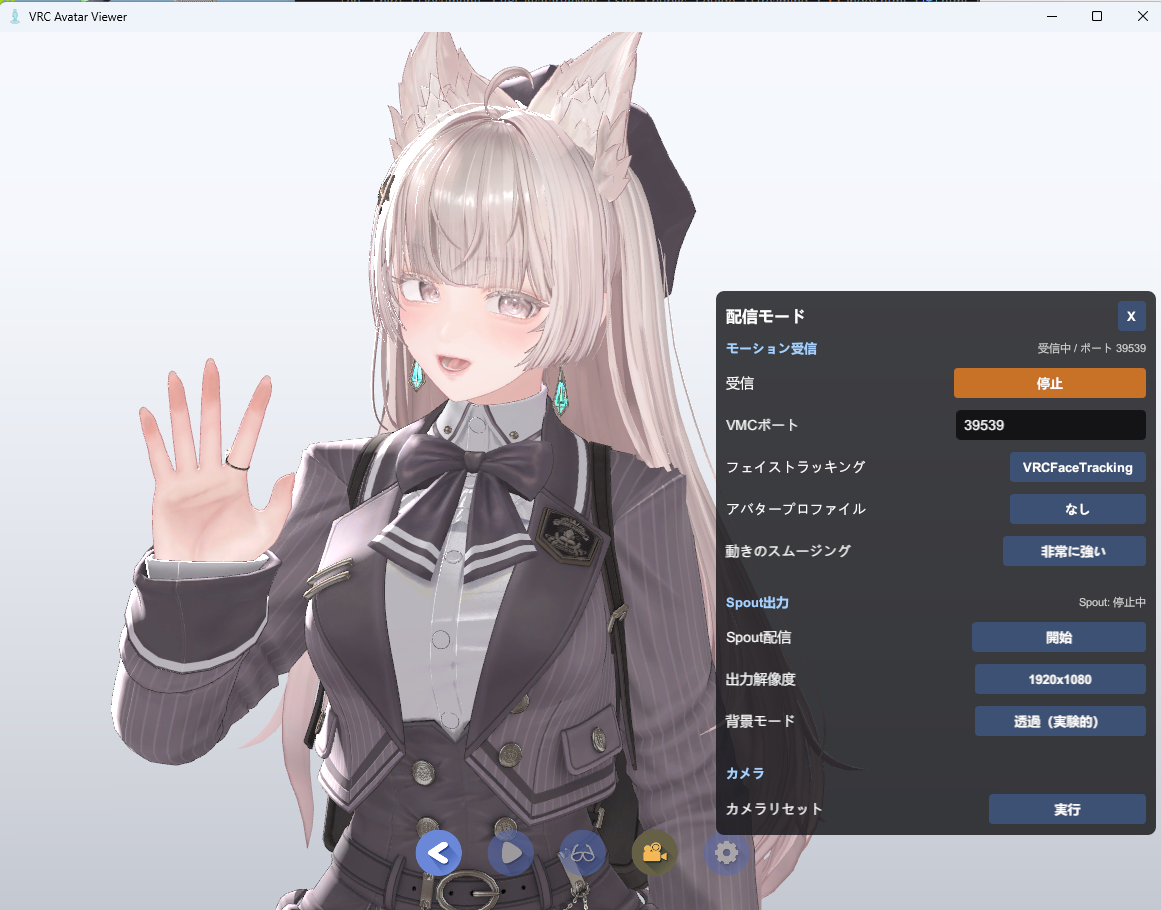
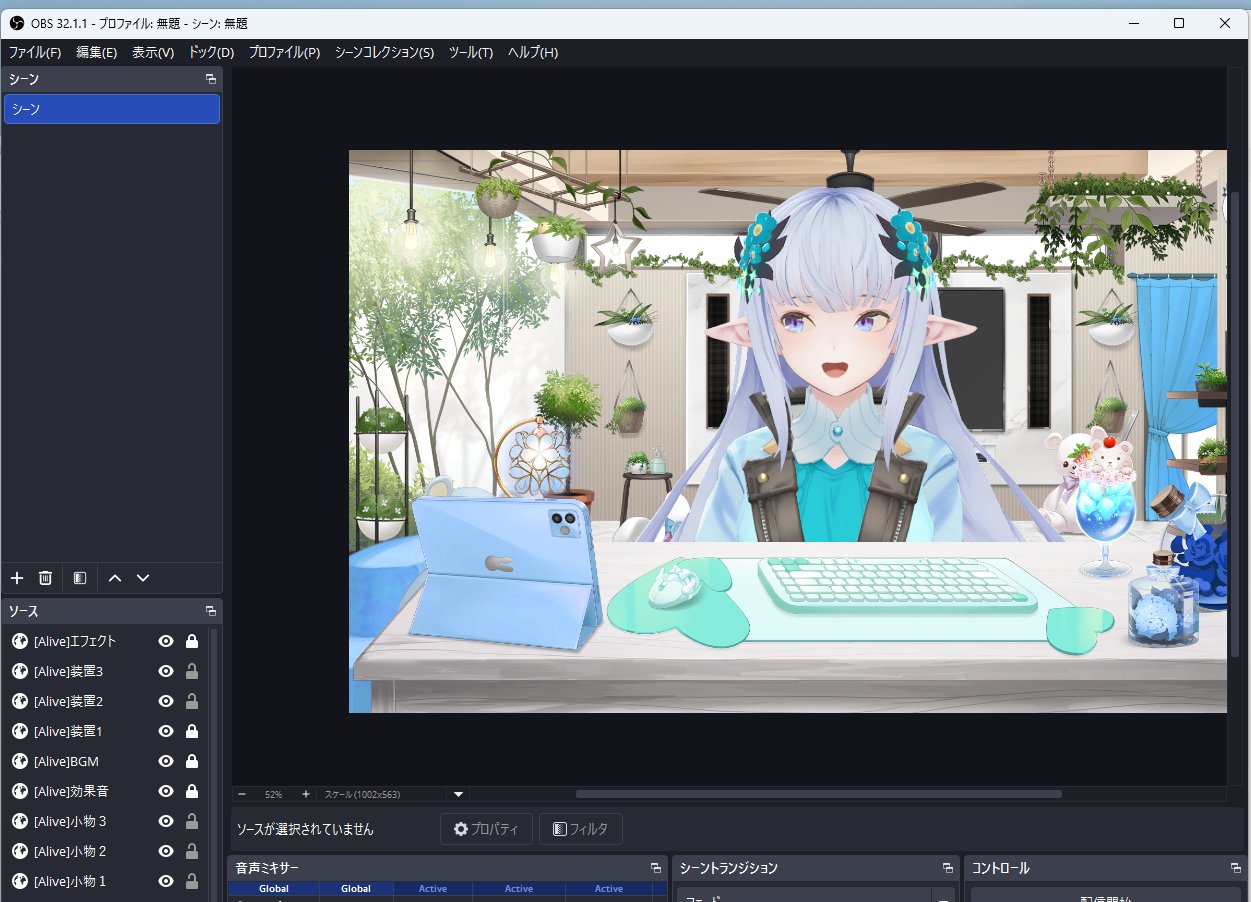
- Track your movements and facial expressions with the Capture App
- Send them to the Avatar Viewer via VMC protocol to animate your avatar
- Integrate the Avatar Viewer into OBS and use it as a broadcast source (optional)
What You Need
- VRC Avatar Viewer (main application)
- Motion Capture for VRC Avatar Viewer (Capture App / distributed on BOOTH)
- Webcam (if you want to move your body and arms. 720p or higher recommended)
- Face ID-compatible iPhone or iPad Pro + iFacialMocap (if you want to move only facial expressions and head without a webcam, or to improve facial expression accuracy)
- Streaming software such as OBS Studio (optional)
VMC / UDP→ [Avatar Viewer] →Spout / Transparent Window→ [OBS][iPhone (iFacialMocap)] → [Capture App] →
VMC / UDP→ [Avatar Viewer]
- This guide first explains a configuration where everything runs on a single PC. If you want to separate the streaming PC and capture PC, there is a supplement at the end of Step 2
- If you use only iFacialMocap without a webcam, you can move your avatar's facial expressions, head movements, and gaze. A webcam is required for body, arm, and lower body movements
- For information about installing the Avatar Viewer itself and loading avatars, please first refer to From Avatar Export to Display
Prepare the Capture App
The Capture App is a Windows application that estimates body, arms, fingers, and facial expressions from webcam footage and transmits them externally via the VMC protocol. Even without a webcam, you can use iFacialMocap to transmit facial expressions, head position, and gaze.
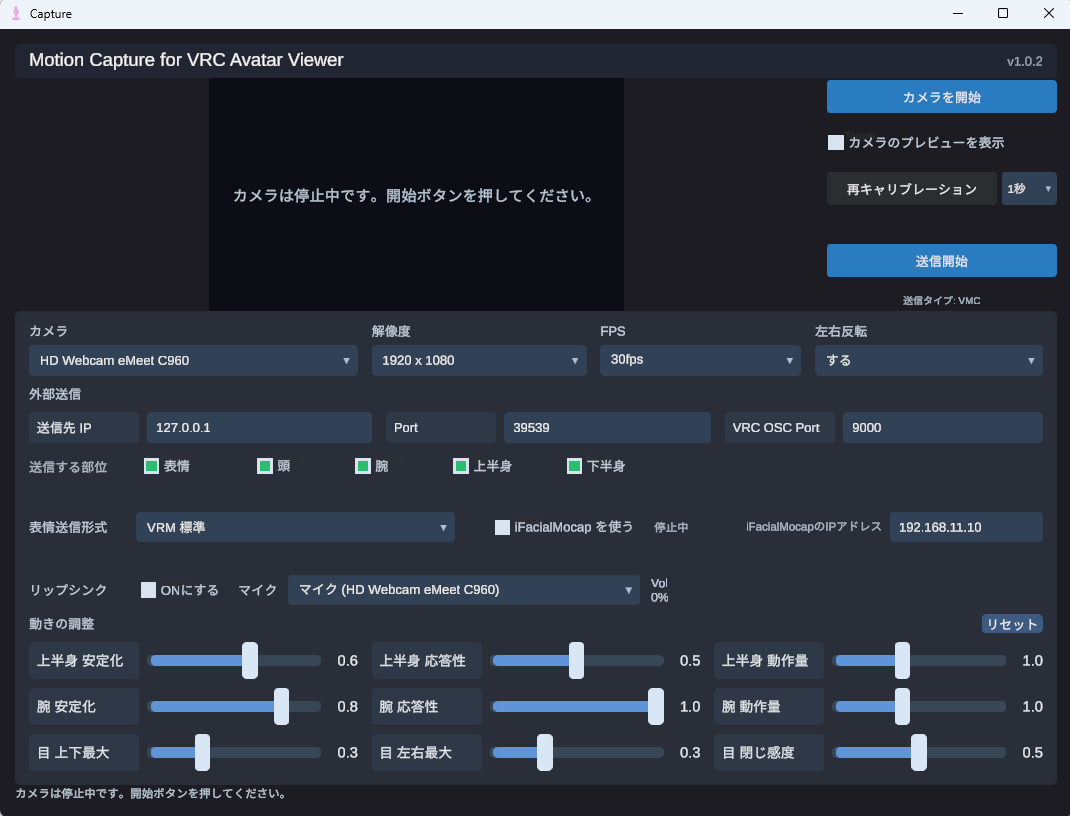
1-1. Download and Launch
- Download the Capture App ZIP from the BOOTH distribution page
- Extract the ZIP and double-click
Capture.exeto launch
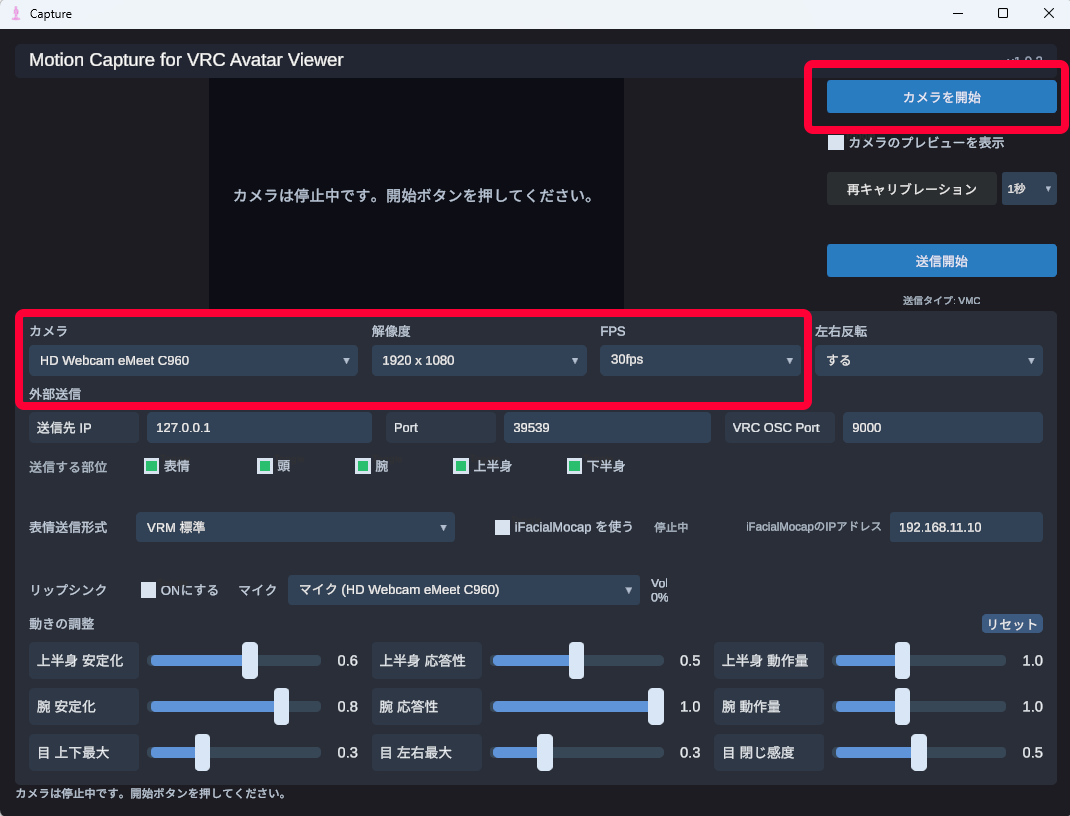
1-2. Start the Webcam
- Select "Camera", "Resolution", and "FPS"
- Click the "Start Camera" button
- Confirm that you appear in the preview
- Stand in front of the camera in a natural posture, as you will press "Initial Calibration" in Step 2
- Position yourself so that your upper body is visible in the frame.
- Keep the background as simple as possible, and ensure there is enough light for your face to be clearly visible
1-3. Use without Webcam (iFacialMocap Only)
If you don't have a webcam, select "No Camera (Use iFacialMocap)" from the camera dropdown. In this mode, you don't use the "Start Camera" button, and only transmit facial expressions, head direction, and gaze received from your iPhone.
- Launch iFacialMocap on your iPhone and note the IP address displayed on the screen
- In the Capture App, select "No Camera (Use iFacialMocap)" from the "Camera" dropdown
- Enter your iPhone's IP address in "iFacialMocap IP Address"
- Turn "Use iFacialMocap" ON
- When the status shows "Receiving", press "Initial Calibration"
- After calibration, press "Start Transmission"
- Facial expressions, head, and gaze can be obtained from iFacialMocap
- Arms, upper body, and lower body require a webcam. If using iFacialMocap only, focus on transmitting facial expressions and head
1-4. Adjust Movements
If movements don't look right, you can adjust them using the Motion Adjustment sliders at the bottom of the screen. Parameters are divided by section: upper body, arms, hands, and eyes.
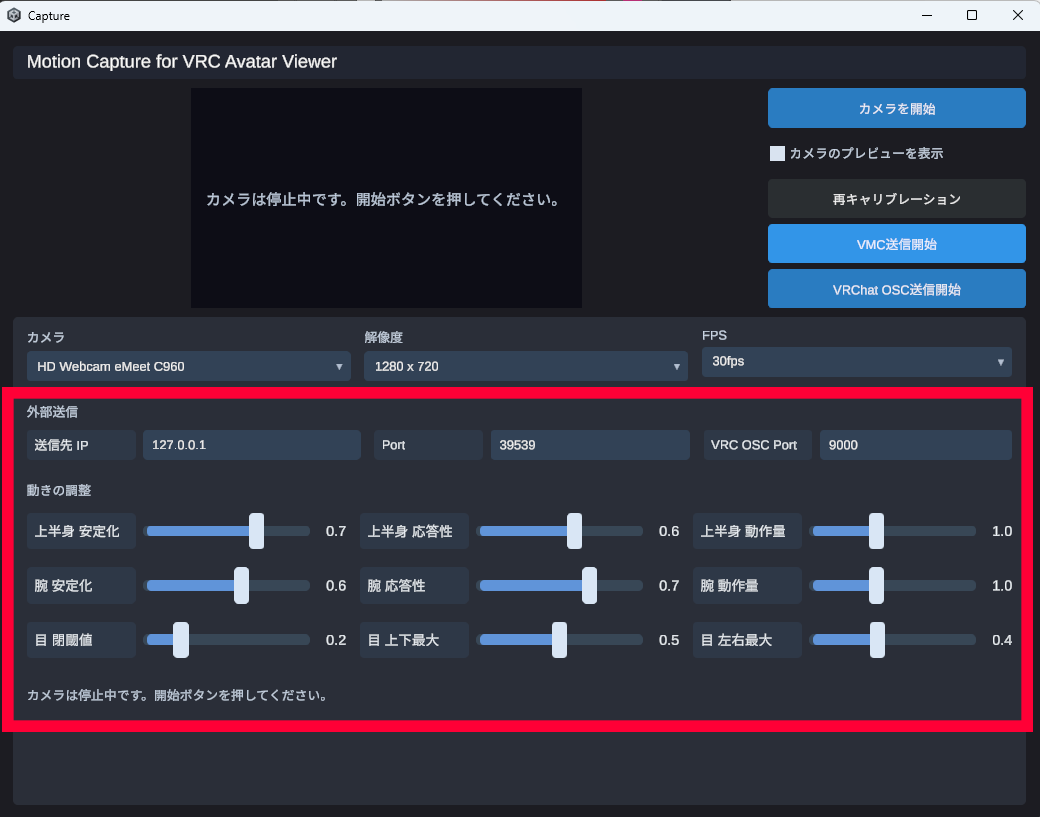
| Section | Parameter | Effect |
|---|---|---|
| Upper Body | Stabilization | Reduces jitter (higher values cause slower tracking) |
| Upper Body | Responsiveness | Tracking response to sudden movements (higher values make movements more agile) |
| Upper Body | Motion Amount | Magnitude of output movement (lower values are more subtle) |
| Arms | Stabilization | Reduces fine arm jitter (higher values cause slower tracking) |
| Arms | Responsiveness | Tracking response of arms to sudden movements (higher values make movements more agile) |
| Arms | Motion Amount | Magnitude of arm movement (lower values are more subtle) |
| Hands | Front/Back | Adjusts whether hands tend to move forward or backward from the body |
| Eyes | Motion Amount | Adjusts the magnitude of gaze movement |
| Eyes | Vertical Position | Adjusts the baseline position of gaze in the vertical direction |
| Eyes | Ease of Closing | Adjusts how readily blinking and eye closing occur |
| Eyes | Ease of Opening | Makes the avatar's eyes open more readily in the normal open state |
Settings are automatically saved when the app closes. The eye parameters affect gaze and blinking output regardless of whether you use a webcam or iFacialMocap for facial expressions.
1-5. When There's a Mismatch Between Human and Avatar Posture
Pressing the "Recalibrate" button will restart the reference posture after a countdown of the specified number of seconds. The first time it says "Initial Calibration", and from the second time onward it says "Recalibrate".
1-6. Select Body Parts to Transmit
Use the "Body Parts to Transmit" checkboxes in the External Transmission section to individually turn ON/OFF which body parts are reflected on your avatar. Body parts turned OFF will remain static in their default pose.
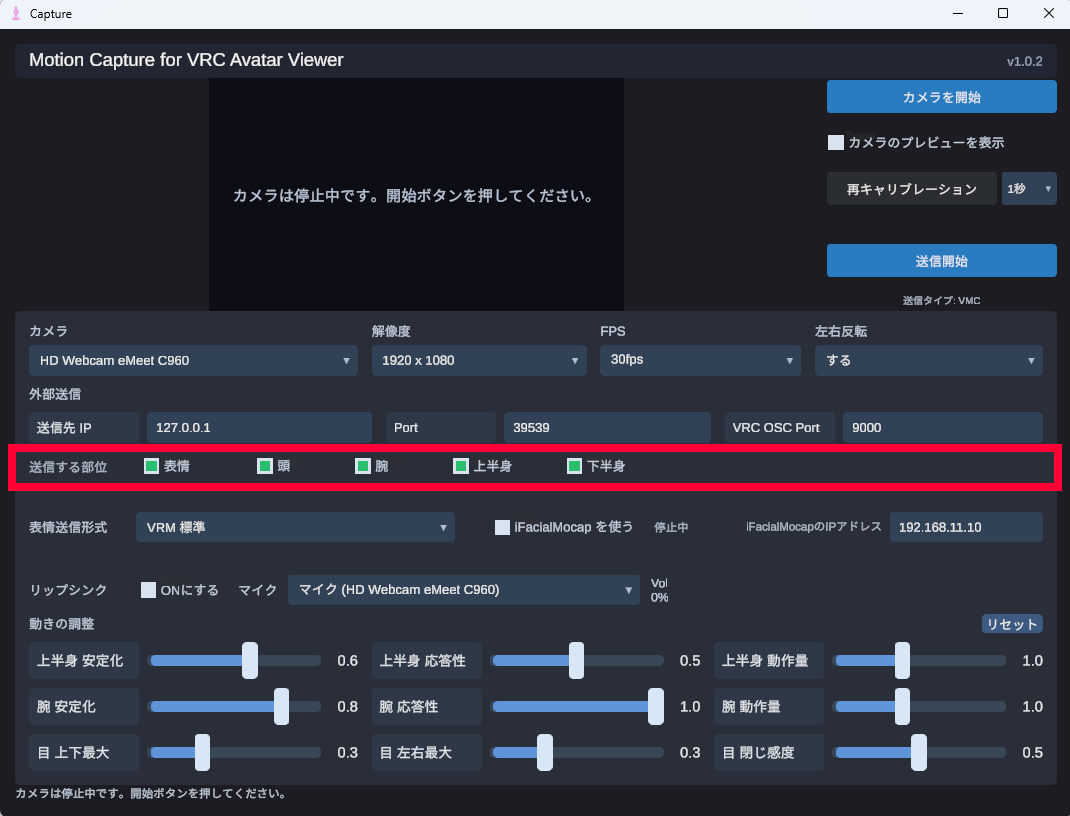
| Body Part | Description |
|---|---|
| Facial Expressions | Face tracking results including blinking, mouth, and gaze |
| Head | Head direction (neck rotation) |
| Arms | Arm and finger movements |
| Upper Body | Upper torso tilting, shoulder movements |
| Lower Body | Hip and leg movements |
- If streaming while sitting in a chair, turning OFF Lower Body can reduce misdetections of standing and sitting
- If using a different tool (such as VRCFaceTracking) for facial expression tracking, you can turn OFF Facial Expressions to avoid conflicts
- If using only iFacialMocap, you can turn ON Facial Expressions and Head, and turn OFF Arms, Upper Body, and Lower Body for clearer operation
1-7. Lip Sync
A feature that generates mouth movements (lip sync) from microphone audio. It responds faster than webcam face tracking, resulting in more natural mouth movements. This is useful for singing streams or streaming while wearing a mask.
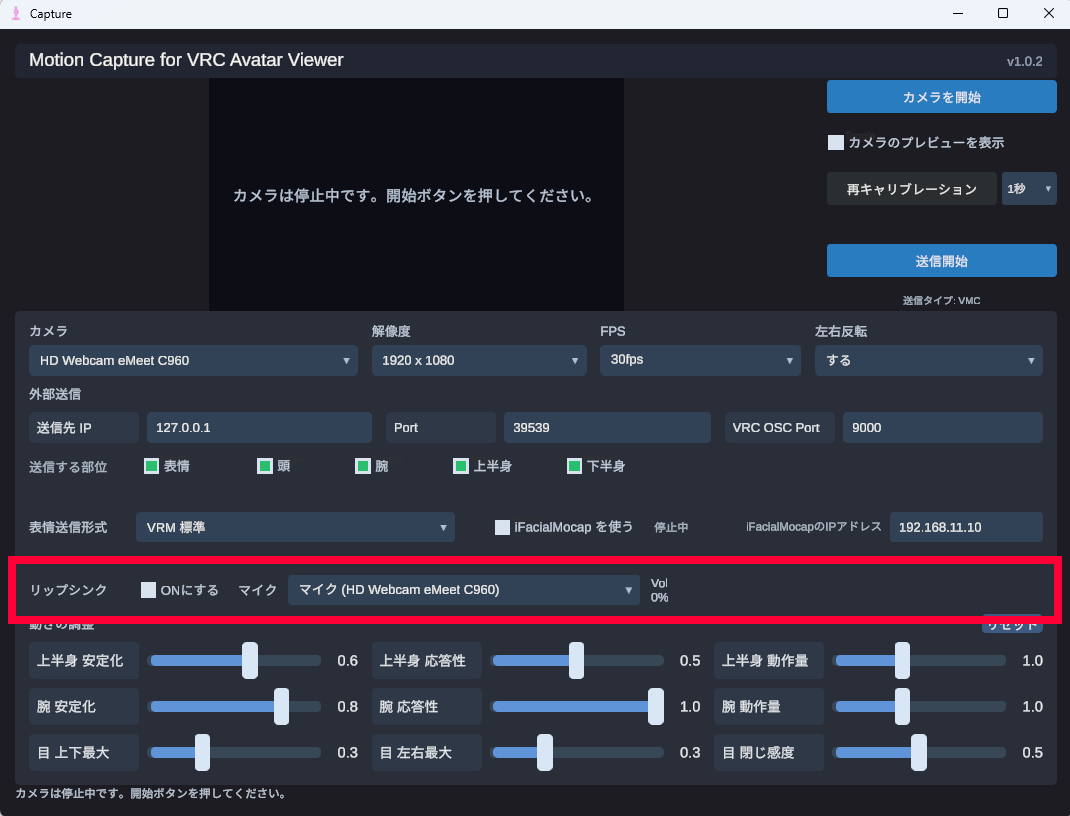
How to Use
- Turn ON the "Enable" toggle in the "Lip Sync" section
- Select the input device to use from the "Microphone" dropdown
- Speak and confirm that the volume meter next to it responds
- While Lip Sync is ON, microphone volume and vowel analysis results take priority over webcam mouth movements
- If the microphone is not responding, check Windows sound settings to confirm the input device is enabled
Integrate with Avatar Viewer and Animate Your Avatar
Motion is transmitted from the Capture App to the Avatar Viewer via the VMC Protocol (OSC over UDP). Simply enable reception on the Avatar Viewer side and specify the transmission destination on the Capture App side to integrate them.
2-1. Avatar Viewer Side: Start Reception in Streaming Mode
- Display your avatar in the Avatar Viewer
- Click the Streaming Mode button in the toolbar
- If needed, open "Face Tracking" and set the type to match the Capture App's "Face Tracking"
- Confirm that the VMC Reception Port is set to
39539 - Press the "Start" button for reception
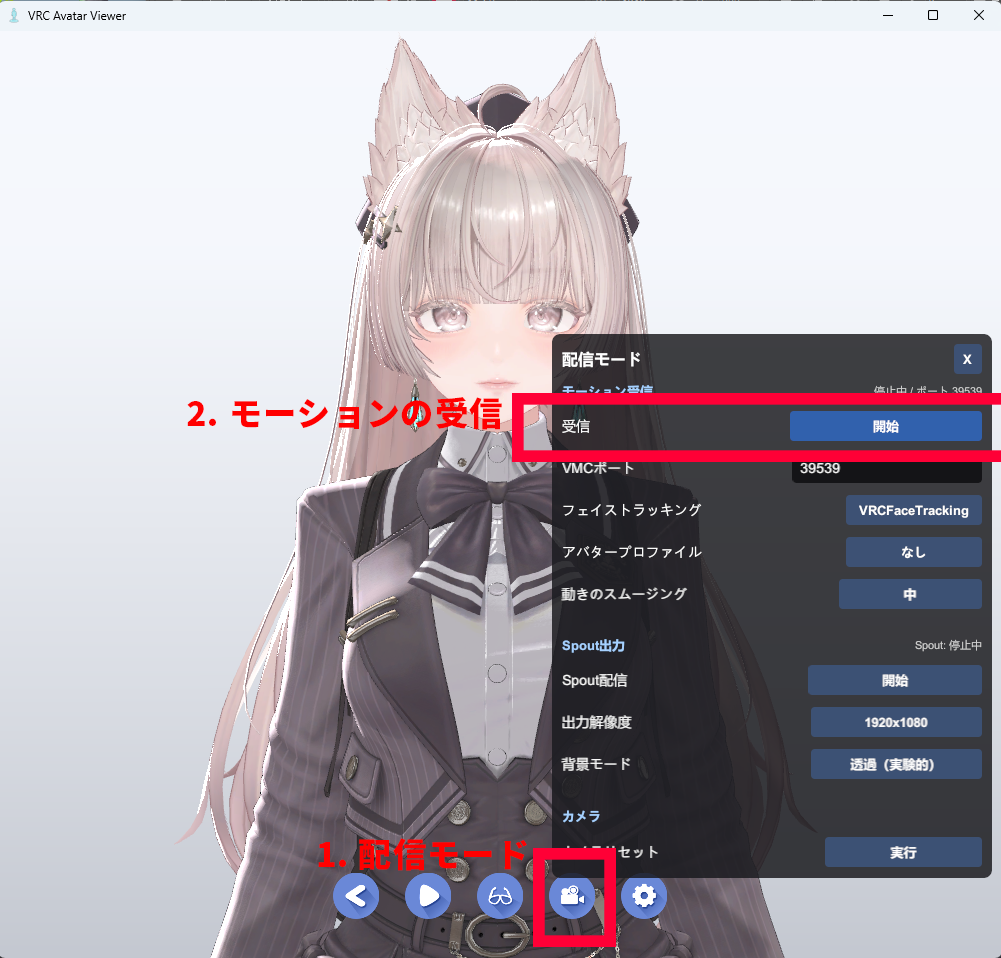
Main Items in the Streaming Panel
| Item | Content |
|---|---|
| IK | Turns arm position correction ON/OFF. Standard is OFF. If wrist or arm direction looks unnatural, leave it OFF |
| Field of View | Adjusts the camera angle of the streaming view. Smaller values are more flat and suitable for VTuber streaming, larger values are wider angle |
| Zoom Strength | Adjusts the strength of zoom changes in response to head forward/backward movement |
| Face Forward | Resets only the avatar's direction to face forward without moving its position |
| Camera Position: Save / Restore | Saves the current streaming camera position and field of view, allowing you to return to the same composition later |
- Setting the face tracking type to VRCFT makes the Viewer side also use the VRChat OSC Reception Port in addition to VMC. You can normally keep it at
9000 - If another application like the VRChat client is using the same OSC port, reception may fail. In that case, change the port
2-2. Capture App Side: Start Transmission After Calibration
- Set the Capture App's "Transmission Destination IP" to
127.0.0.1and "VMC Port" to39539 - If using VRCFT, also set "VRC OSC Port" to the same value as the Viewer's VRChat OSC Reception Port (normally
9000) - Prepare to receive from your webcam or iFacialMocap
- Press the "Initial Calibration" button
- Wait for the countdown to finish and record your initial posture
- Press the "Start Transmission" button
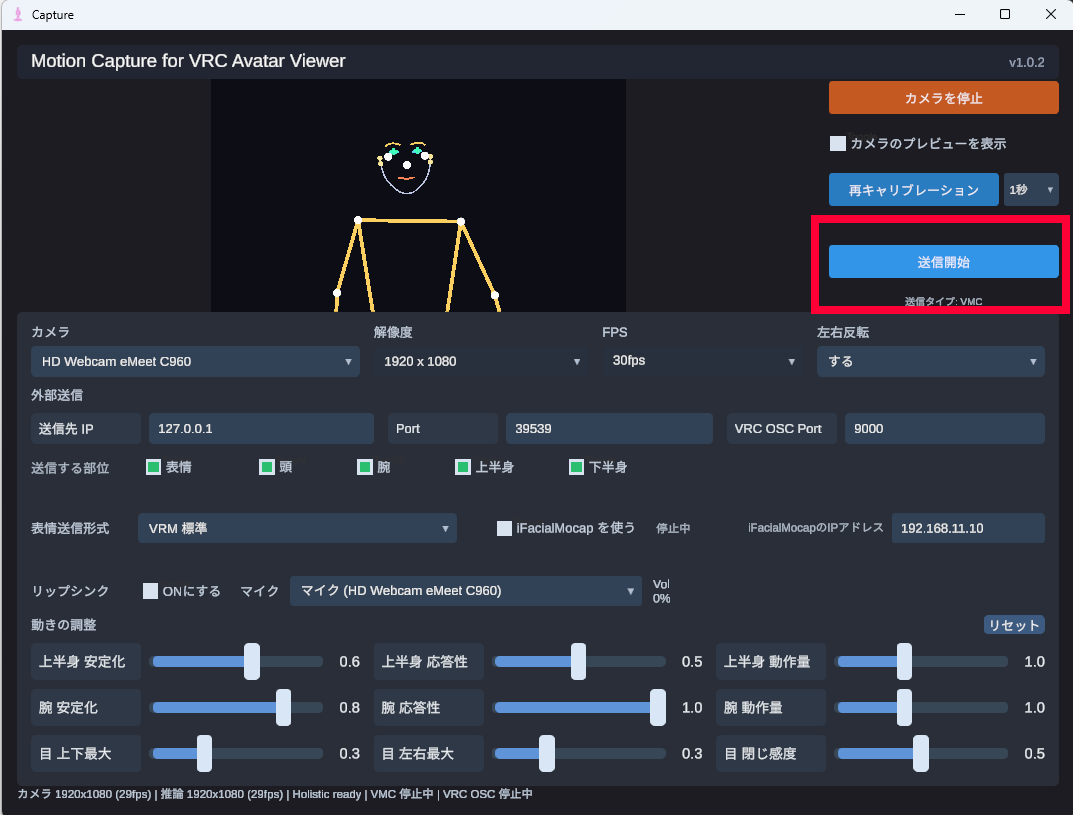
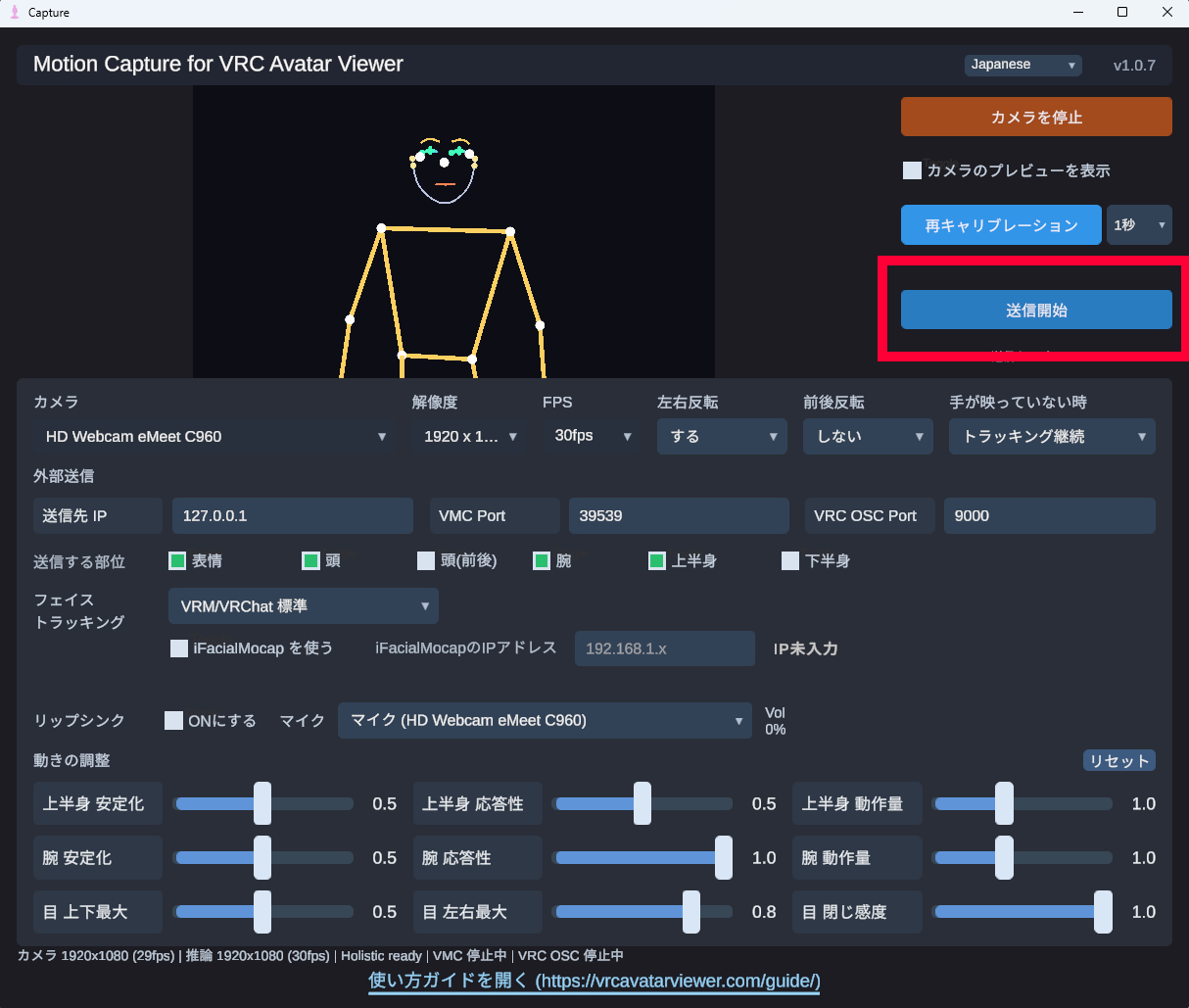
Your avatar will now begin moving in sync with your movements. If using iFacialMocap only, facial expressions, head, and gaze will be reflected.
- When using a webcam: The camera is active and initial calibration is complete
- When using iFacialMocap only: The camera is set to "No Camera (Use iFacialMocap)", iFacialMocap is Receiving, and initial calibration is complete
- When using iFacialMocap only, the "Start Camera" button is disabled. This is normal behavior
- Below the "Start Transmission" button, a caption showing "Transmission Type: VMC" or "Transmission Type: VMC + VRChat OSC" appears. This indicates your current transmission protocol
- The caption changes based on your selection of facial expression transmission format (VRM Standard / Perfect Sync / VRCFT). Only when VRCFT is selected does face tracking data flow to both VMC and VRChat OSC
- For more details about facial expression tracking, see the Facial Expression Tracking or VRCFaceTracking Integration guides
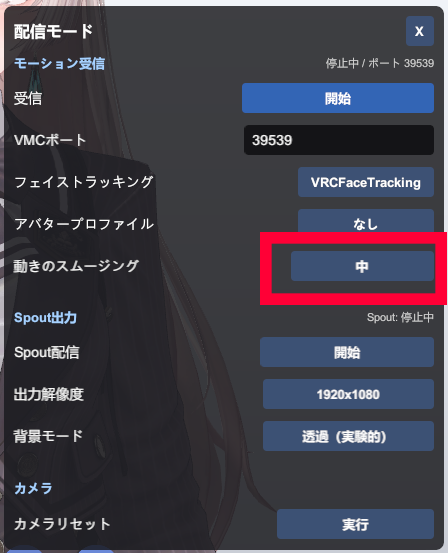
- If movements appear stiff, open "Motion Smoothing" in the Viewer's streaming mode to adjust smoothing for head, body, hands/arms, gaze, blinking, eyebrows, and mouth individually
- Moving the slider to the right makes movements smoother and reduces trembling. However, this increases latency
- When using VRCFT, facial expression smoothing is disabled
2-3. When Movements Don't Work Properly
Check items for issues such as being unable to start transmission, avatar or facial expressions not moving, iFacialMocap remaining in connection standby, or movements freezing are compiled in the Streaming Mode FAQ.
2-4. When You Want to Transmit from a Different PC
If you want to use separate PCs for capture and streaming, set the Capture App's "Transmission Destination IP" to the IP address of the Avatar Viewer PC. Allow UDP 39539 reception in the Avatar Viewer PC's firewall. Same LAN with wired connection is recommended.
Facial Expression Tracking
Facial expression tracking is covered in separate guides.
- Facial Expression Tracking (Webcam / iFacialMocap) How to obtain facial expressions using a webcam or iPhone (iFacialMocap) with the Capture App
- VRCFaceTracking Integration How to send facial expressions directly from VRCFaceTracking, the de facto standard for VRChat face tracking, to the Viewer app (Quest Pro / Vive Facial Tracker, etc.)
Import Avatar into OBS Studio
There are two methods to import the Avatar Viewer as a broadcast source in OBS Studio (hereafter OBS). The Spout2 method is recommended as it offers better image quality and performance, but you can also use the "Window Capture" method which doesn't require plugin installation.
Method A: Output to OBS Using Spout2 (Recommended)
Spout is a mechanism for directly sharing video between applications on Windows. It allows you to pass your avatar to OBS with high quality and low latency.
- OBS Side Preparation Install Spout2 Plugin for OBS Studio and restart OBS
- Avatar Viewer Side Open Streaming Mode and start Spout broadcasting
- OBS Side Add a source, select "Spout2 Capture", and choose the output being sent from the Avatar Viewer
- Spout can also pass the alpha channel (transparency information), so you can composite with a transparent background in OBS
- Spout output has anti-aliasing applied just like normal display
Method B: Transparent Background Mode + Window Capture
This method is suitable if you don't want to install plugins or want to use it as a desktop mascot as well.
- Turn ON Transparent Background Mode from the Avatar Viewer toolbar (the background disappears, leaving only the avatar)
- Add a "Window Capture" source in OBS and select the Avatar Viewer window
- Adjust cropping and size to position the avatar as desired
- You can still control the avatar camera with the mouse while in transparent background mode
- You can open streaming mode even in transparent background mode, allowing you to animate the avatar on your desktop while streaming