Send Face Tracking to VRChat
Send facial expression data from capture app to VRChat via OSC
The capture app can send facial expression data estimated from a webcam feed to VRChat's OSC API. By integrating it with a VRCFaceTracking-compatible avatar, you can animate your VRChat avatar with rich expressions using just a single webcam.
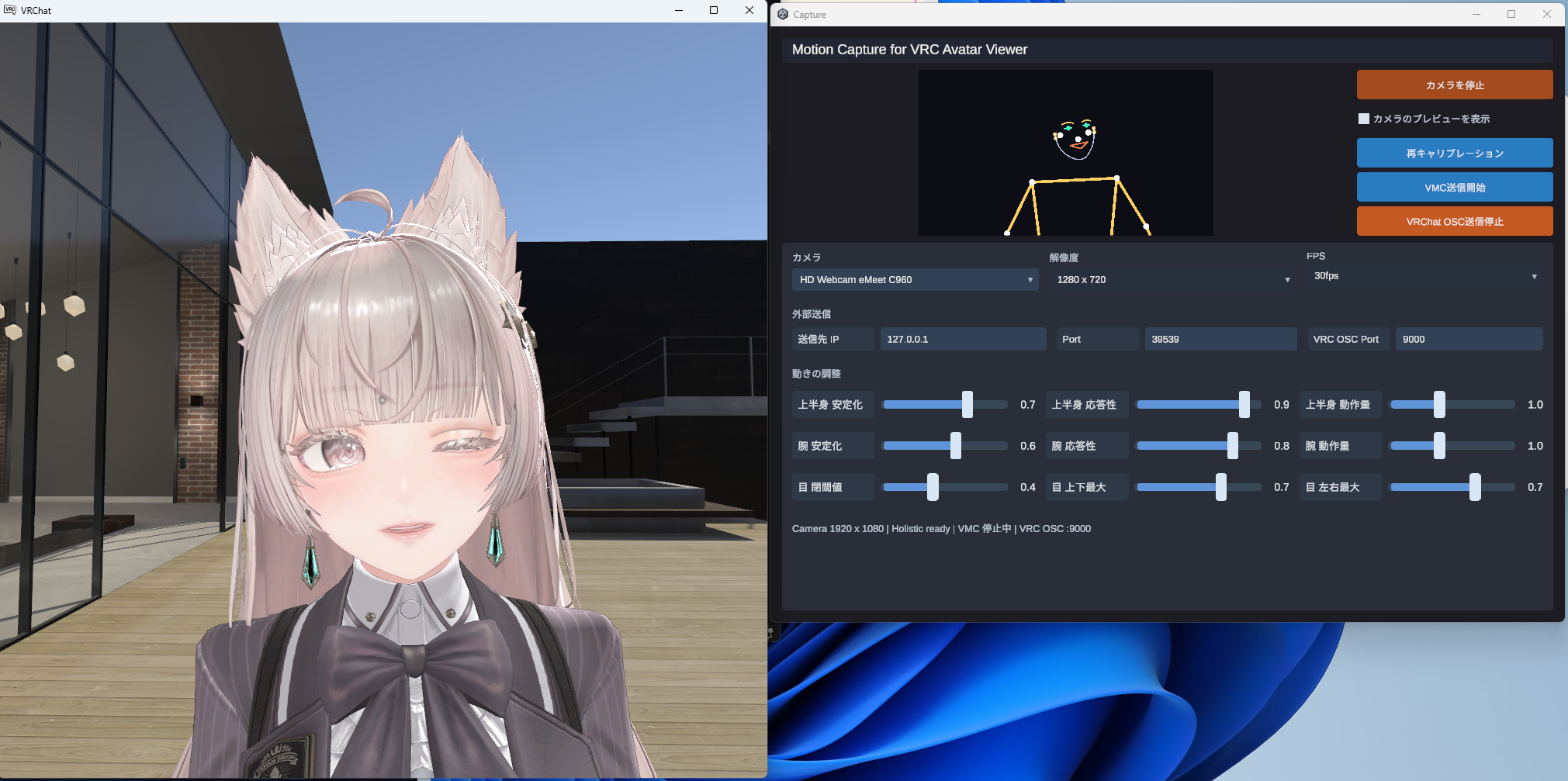
What you need
- Motion Capture for VRC Avatar Viewer (the capture app / distributed on BOOTH)
- Webcam (720p or higher recommended)
- VRChat (Steam / standalone version)
- A VRCFaceTracking-compatible avatar
OSC / UDP :9000→ [VRChat]
- This feature works independently of the VRC Avatar Viewer. If you only want to animate facial expressions in VRChat, you don't need to launch the viewer
- You can also enable it simultaneously with VMC transmission to the VRC Avatar Viewer. The same expressions can be played back in both VRChat and the viewer
VRChat-side setup
1-1. Enable OSC
VRChat has OSC reception disabled by default. Enable it from the in-game menu.
- Launch VRChat and enter a world
- Open the Quick menu and go to
Options→OSC - Turn "Enabled" ON
- The default OSC reception port is
9000. The capture app uses this port as well - If you've previously used another OSC app, an old parameter configuration file may remain. If expressions don't work as expected, use
Reset Configto regenerate the configuration file (in VRChat's OSC menu)
1-2. Use a VRCFaceTracking-compatible avatar
Your VRChat avatar must have VRCFaceTracking-compatible facial expression parameters built in. With unsupported avatars, nothing will happen even if you send data from the capture app.
- If you're not sure whether your avatar is supported, check the avatar's distribution page for mentions of "VRCFaceTracking-compatible" or "VRCFT-compatible"
- If you want to add support to an unsupported avatar, many face tracking add-ons for various avatars are available on BOOTH
Capture app settings
2-1. Start the camera
- Launch the capture app
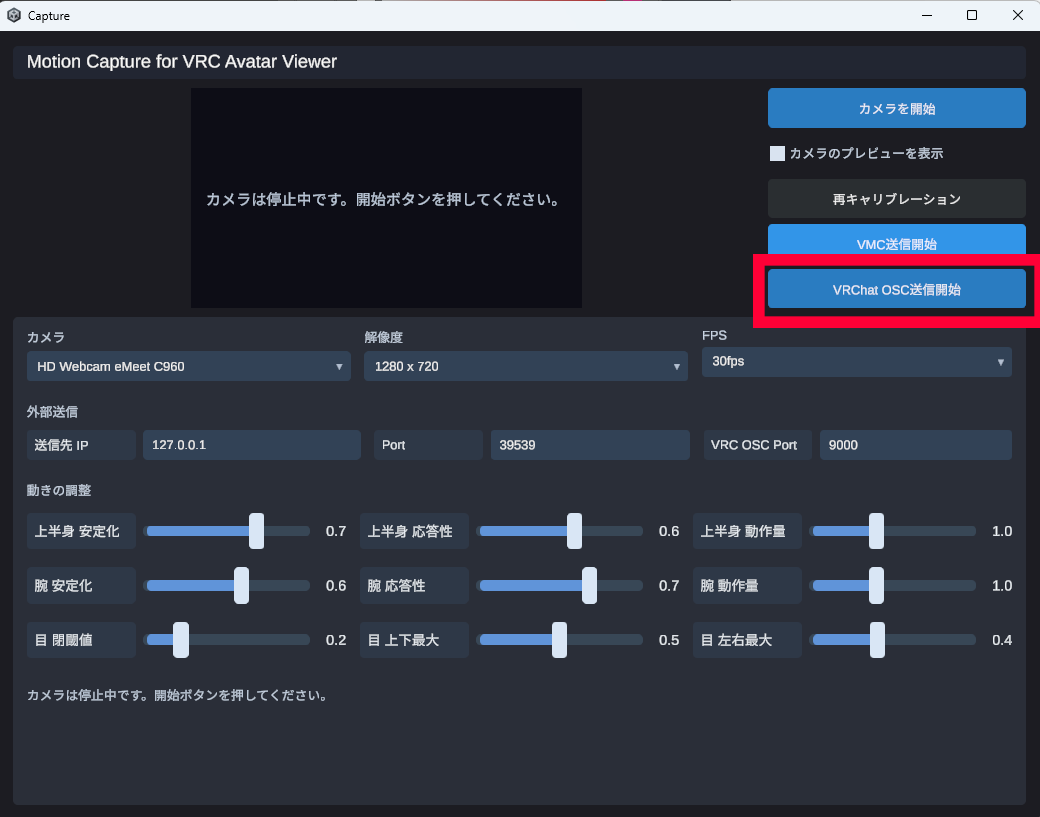
- Select "Camera", "Resolution", and "FPS", then press "Start Camera"
- Once you appear in the preview, stand in front of the camera and stay still for 1-2 seconds (initial calibration)
- If you want to play VRChat with an HMD while using this, place the webcam below or in front of your face
- Sufficient lighting to clearly show your face is required. The accuracy of expression estimation drops significantly in dim conditions
2-2. Turn on VRChat OSC transmission
- Confirm that "VRC OSC Port" in the capture app is set to
9000 - Press the "VRChat OSC" button to turn it ON
When the button is turned ON, the capture app will start sending face tracking values to 127.0.0.1:9000 in the format /avatar/parameters/v2/<parameter name>.
- The transmission rate is automatically limited to about 30fps. This is to reduce network load and processing load on VRChat, and is sufficient for tracking expressions
- The capture app and VRChat are assumed to run on the same PC. Configurations that send data from a separate PC are not supported
Verify operation
Success is when your avatar's expressions in VRChat move in sync with the webcam feed. Here are some good points to test.
- Blinking Open and close both eyes to check if the avatar's blinking responds
- Mouth movement Move your mouth saying "A, I, U, E, O" to check if lip sync works
- Eyebrows Raise and lower your eyebrows to check if it's reflected on the avatar
- Gaze Move your eyes left/right and up/down to check if the avatar's eyes follow
- Some parameters (cheeks, tongue, etc.) cannot be tracked with a typical webcam. Even if implemented in the avatar, some may not move
- If you feel expression movements are weak, you can adjust responsiveness and motion amount in the capture app's "Motion Adjustment" section