Streaming Mode FAQ
Troubleshooting tips for capture apps, VMC connection, and OBS integration
This page contains frequently asked questions about streaming mode and capture apps. For basic procedures, see the Streaming Mode Guide, and for choosing a face tracking method, see the Face Tracking Guide.
- Is "Streaming Mode" receiving enabled on the Viewer app?
- Do the capture app's destination IP and VMC Port match the settings on the Viewer app?
- If using without a webcam, have you selected "No Camera (Use iFacialMocap)" in the camera dropdown?
Avatar is not moving / behavior is strange
If your avatar's body, head, or other parts are not moving, check the send/receive status and VMC-related app conflicts.
- Use the latest version of the app
- Is streaming mode receiving enabled on the Viewer app?
- Have you completed "Start Sending" on the capture app?
- If using on the same PC, is the capture app's destination IP set to
127.0.0.1? - Does the VMC Port match between the capture app and Viewer app?
- Are you using it together with other VMC-related apps?
First, try using just the base avatar without modifications. If it still behaves strangely in that state, the avatar is the problem, so please contact the creator.
Otherwise, the issue is usually caused by gimmicks or animations in the modifications. However, since we cannot see the modification details, we ask users to investigate themselves. It's best to start with a base avatar, then attach modification items one by one to find the problematic one and remove it.
Facial expressions are not moving
If facial expressions are not moving, first check that "Expression" is checked and enabled in the send parts of the capture app.
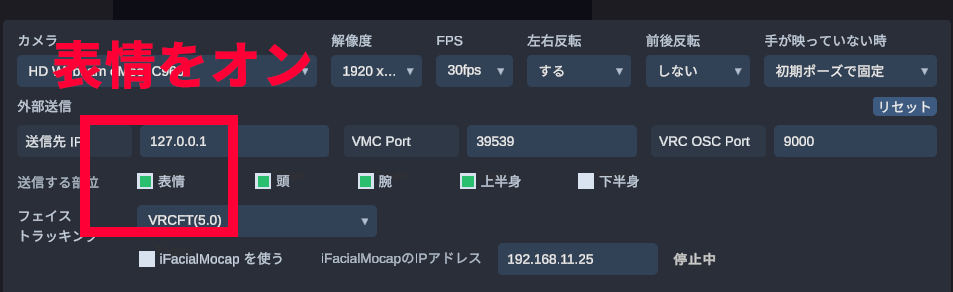
Also, check for face tracking type conflicts and VRC OSC Port conflicts.
- Verify that the face tracking type is correct (such as VRCFT)
- The face tracking type supported by the avatar, the streaming mode settings on the Viewer app, and the capture app settings must all match
- Are you using it together with another app that uses the same VRC OSC Port, such as VRCFaceTracking?
Correspondence between face tracking and facial expression BlendShapes
Even for the same actions like "open mouth" or "blink," the BlendShape names and parameter names that Viewer references differ depending on the face tracking type. If the avatar doesn't have the corresponding expression, or if the expression is created with minimal movement, only some expressions may not move.
| Type | BlendShape Name | Confirmation Point |
|---|---|---|
| VRM/VRChat Standard | Mouth: A/I/U/E/O, aa/ih/ou/ee/ohBlink: Blink_L, Blink_R, blinkLeft, blinkRight |
Works with almost any avatar, but with basic movement. If it's a VRChat avatar, it won't work if automatic blinking or expression control gimmicks are included. |
| Perfect Sync | Mouth: jawOpen, mouthFunnel, mouthPucker, etc.Blink: eyeBlinkLeft, eyeBlinkRight |
Allows for rich facial expression changes. Primarily supported by VRM avatars, but VRChat avatars with the same-named BlendShapes will also work. |
| VRCFT | VRCFaceTracking 5.x Unified Expressions / FX Parameters | Check the avatar's VRCFT support, FX parameters, and VRChat OSC Port. Facial expression movement varies depending on how the add-on is configured. |
How to check what face tracking types the avatar supports?
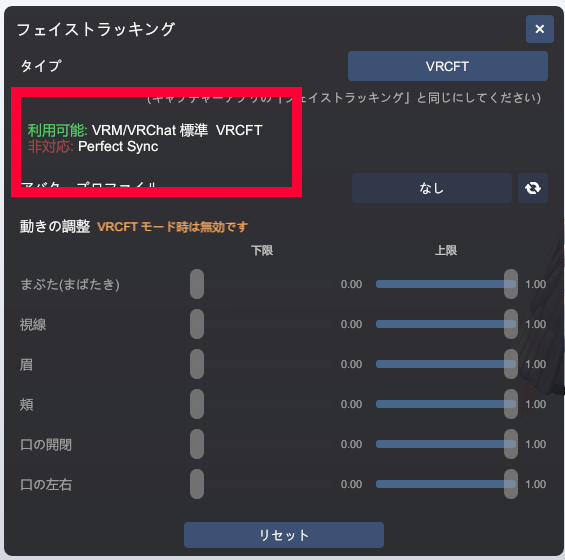
In the Viewer app, you can check what face tracking types the currently loaded avatar supports. Before checking the capture app or VRCFaceTracking settings, first verify that the avatar supports that type.
- Display the avatar in the Viewer app
- Open Streaming Mode from the toolbar
- Click the Face Tracking button in the streaming mode
- Check the Available and Unsupported displays in the window
- Types shown under Available can be used with that avatar. Set both the capture app and Viewer to the same type
- Types shown under Unsupported are judged to not be supported by the current avatar
- If VRCFT shows as Unsupported even though you have a VRCFT support add-on installed, the add-on application, FX parameters, or export settings may not be correct. Check the avatar settings in Unity and re-export
Can I use it without a webcam?
Yes, you can. If you have a Face ID-capable iPhone/iPad and iFacialMocap, you can send facial expressions, head orientation, and gaze without a webcam.
- In the capture app's "Camera" dropdown, select "No Camera (Use iFacialMocap)"
- Enable "Use iFacialMocap"
- Enter the IP address of iFacialMocap and send from your iPhone
- Once the connection status shows "Receiving," perform initial calibration and start sending
- Without a webcam, motion for body, arms, and lower body cannot be captured
- In this mode, the "Start Camera" button is not used. It's normal for the button to be disabled
- If you enable "Use iFacialMocap" while a webcam is selected, body movement is prioritized from the webcam and facial expressions from iFacialMocap
- If iFacialMocap remains in connection standby, check if the iPhone and PC are on the same LAN, if the iPhone's IP address is correct, and if iFacialMocap is ready to send
"Start Sending" button cannot be pressed
The send button becomes available after the capture app receives valid input. For webcam, check the camera start and initial calibration. For iFacialMocap alone, check the iFacialMocap receiving status.
- When using a webcam Start the camera and perform initial calibration after you appear in the preview. You may not be able to start sending if your face or upper body cannot be detected.
- When using only iFacialMocap Set the camera to "No Camera" and verify that iFacialMocap is in the receiving state. You cannot start sending if there is no receiving data.
- When using neither You cannot start sending because there is no valid tracking input.
Movement is jerky or freezing
If movement freezes, tracking goes wild, or response is unstable, check the input status on the capture app side and smoothing on the Viewer app side.
- Verify that you appear in the capture app preview and that tracking is working
- If your clothing and background are similar in color, tracking accuracy will clearly decrease. Avoid wearing clothes in the same color as the floor or walls, and wear colors with strong contrast to the background
- If you want to move your arms, make sure your elbows and arms are in the camera's field of view
- On the Viewer app's streaming mode, open "Motion Smoothing" to adjust by body part (head, body, hands, etc.)
- Increasing the value makes movement smoother, but response will be slightly delayed
- Decreasing the value makes response faster, but rough input will cause more jerkiness
- When using only iFacialMocap, movement instability can also be caused by Wi-Fi delays or packet loss. Connect your iPhone and PC to the same network and use it in a stable communication environment as much as possible
- In VRCFT mode, the motion data from the transmission source and FX parameter movement take priority over Viewer-side facial expression smoothing
これはほかの配信者さんにもお伝えしたいのですが、トラッキングを安定させるために、カメラ性能よりも「画角」と「服」が大事でして、
— Rob_VRC (@Rob_VRC) April 22, 2026
・肘と腕が入るくらいの画角にする(添付画像くらい)
⇒ トラッキングの安定性が上がります
・腕が出る服(半袖とか)を着る
⇒… pic.twitter.com/u5SXE0SPa9
Cannot import into OBS
There are two main ways to import from the Viewer app into OBS: Spout output and transparent window capture. Spout output is typically recommended.
- Enable Spout output on the Viewer app, then add a Spout-compatible source on the OBS side
- If the source doesn't appear on OBS, verify that the Viewer app and OBS are running on the same GPU
- To use transparent window capture, enable background transparency mode in the Viewer app
- In the trial version, the "Trial" label remains on the Spout output side as well
Cannot connect to iFacialMocap
If motion data from your iPhone arrives for only a moment, the status shows "Receiving" but immediately reverts, or the connection remains in standby mode unstably, check the Windows firewall or iPhone's local network permissions.
Check Windows Defender Firewall
Data from the iPhone reaches the PC, but Windows Firewall may be blocking the reception. Particularly if data only flows for a moment right after the capture app sends a signal to the iPhone every few seconds, this is likely the issue.
- Search for "Firewall" in the Windows Start menu
- Open the Windows Defender Firewall screen
- Temporarily disable the firewall
- Check if the capture app status remains stable at "Receiving"
- If it becomes stable when the firewall is off, allow the capture app's communication in the firewall settings
- After verification, turn the firewall back on for security
Check iPhone's local network permissions
If iFacialMocap's local network access is turned off in the per-app permissions on your iPhone, communication may not work even if connected to the same Wi-Fi as your PC.
- Open the "Settings" app on your iPhone
- Open "Apps"
- Select "iFacialMocap" from the list
- Enable "Local Network" under "Allow iFacialMocap to access"
- Reconnect iFacialMocap and the capture app
- Are the iPhone and PC connected to the same Wi-Fi / LAN?
- Is the iPhone's IP address entered in the capture app correct?
- Is iFacialMocap ready to send?