Face Tracking
Webcam and iPhone face tracking in the Capture app
Motion Capture for VRC Avatar Viewer (the "Capture App" below) can also bring your facial expressions, such as blinking and mouth movements, onto your avatar. You choose two things separately: how expression data is captured, and the format used to send it to the avatar.
Two Data Sources (Capture Methods)
- Webcam (default) Estimates your expressions from the video of a webcam connected to your PC. No extra equipment is needed, so anyone can use it, but there are limitations, such as not being able to capture cheek or tongue movements.
- iPhone (iFacialMocap) With a Face ID-capable iPhone and iFacialMocap (a paid iOS app), you can capture 52 kinds of highly accurate ARKit-based expression data. It is far more expressive than a webcam.
The format used to send the captured expression data to your avatar is chosen in "Facial Expression Sending Format". First check which formats your avatar supports, then choose one that matches (see Step 3 onward for details).
- While iFacialMocap is connected, its expression data takes priority over the webcam (body movement still comes from the webcam)
- Whatever sending format you choose, iFacialMocap's expression data is used whenever it is enabled
- For details on using this with VRChat, see the Send Face Tracking to VRChat guide
Capture Expressions with a Webcam
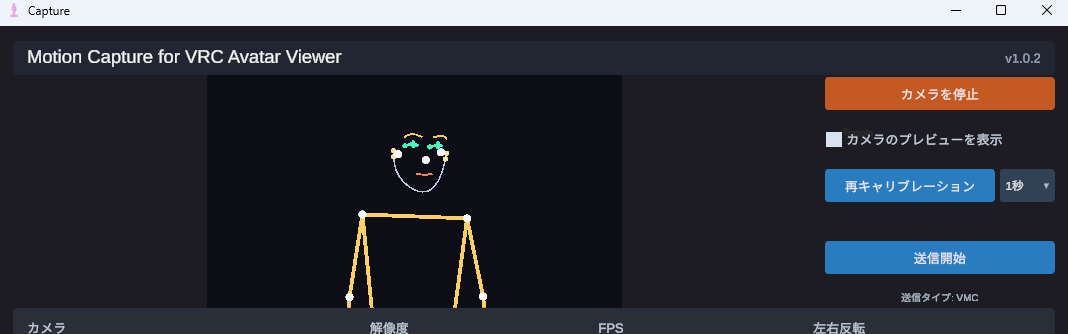
This is the default method. Once you start the camera as described in the Move Your Avatar guide, your expressions are automatically estimated from the webcam as well. No extra setup is needed.
1-1. What Can Be Captured
- Blinking (each eye separately)
- Vowels (A, I, U, E, O)
- Gaze (up, down, left, right)
- Eyebrow raising/lowering, mouth opening/closing, mouth corner movements, and more
1-2. What Cannot Be Captured / Weak Points
- Cheek puffing and tongue movements
- Accuracy drops sharply in dark places. You need enough light for your face to be clearly visible
- Angles where the front of your face isn't visible, such as a side profile or looking down
- When using a webcam alone, VRM Standard is recommended. It moves naturally on most avatars
- Perfect Sync and VRCFT also work. However, as noted above, some movements can't be captured.
Capture Highly Accurate Expressions with an iPhone (iFacialMocap)
With a Face ID-capable iPhone (iPhone X or later), you can make your expressions much more accurate than with a webcam. You'll need an iOS app called iFacialMocap.
2-1. What You Need
- A Face ID-capable iPhone or iPad Pro
- iFacialMocap purchased from the App Store (paid iOS app)
- Your iPhone and PC connected to the same Wi-Fi (LAN)
2-2. iPhone Setup
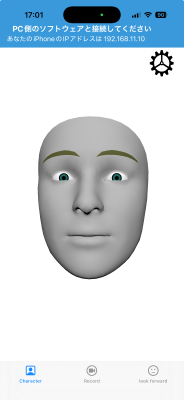
- Launch iFacialMocap on your iPhone
- The screen shows a message asking you to connect from the PC software. Note down the IP address shown (e.g.
192.168.1.10)
- Open iFacialMocap's settings and check the destination settings. If a value is entered for the destination IP address, the IP address isn't shown. Tap "Reset destination settings" just below it and restart the app, and it will appear.
2-3. Capture App Setup
- Enter the iPhone IP you noted down in the Capture App's "iFacialMocap IP Address" field
- Turn ON "Use iFacialMocap"
- When the status next to it changes to "Receiving", the connection has succeeded
2-4. What the Status Means
| Status | Meaning |
|---|---|
| Stopped | The "Use iFacialMocap" toggle is OFF |
| IP Not Entered | The iPhone IP field is empty. Once you enter it, the app tries to connect automatically |
| Awaiting Connection | A handshake was sent, but the iPhone hasn't responded (iFacialMocap isn't running / wrong IP / different network, etc.) |
| Receiving | Expression data is being received normally |
2-5. What Can Be Captured
You get 52 ARKit-based blend shapes, plus head rotation and left/right eye gaze. This includes cheek puffing and tongue movements that a webcam can't capture (your avatar needs to have those blend shapes).
- Even while iFacialMocap is enabled, body, arm, and finger movements keep coming from the webcam
- It's a hybrid setup: "expressions from iFacialMocap, body from the webcam"
Check Which Face Tracking Formats Your Avatar Supports
Before choosing a sending format, check in the Viewer app which face tracking formats the avatar currently shown supports. If you choose an unsupported format, the avatar won't move correctly even when the Capture App sends expression data.
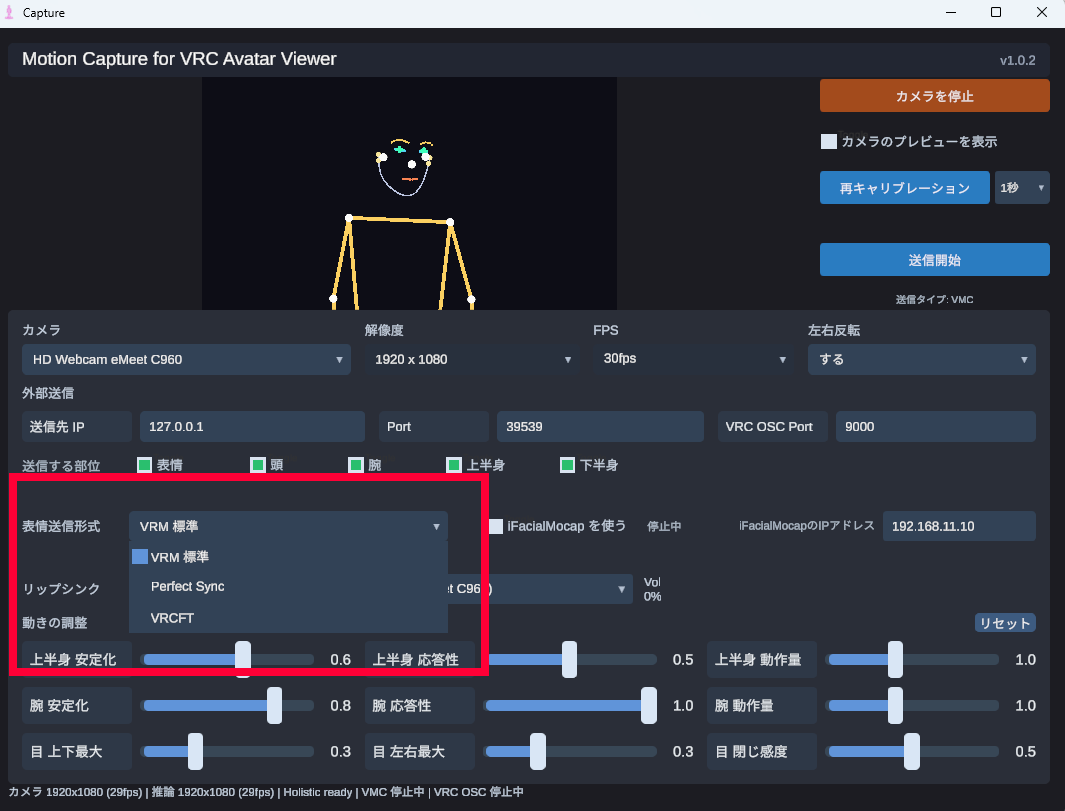
- Show the avatar you want to use in the Viewer app
- Turn ON Streaming Mode
- Click the "Face Tracking" button in the Streaming panel
- Check the "Available:" line below the "Type" button at the top of the window
- The formats supported by the currently loaded avatar are listed, for example "Available: VRM/VRChat-Default, Perfect Sync"
- Choose the same format from this list for both the Capture App's "Facial Expression Sending Format" and the Viewer's "Type"
- If you choose an unsupported format, expressions may not move at all, or some blend shapes may not be applied
Choose a Facial Expression Sending Format (Blend Shape Standard)
In the Capture App's "Facial Expression Sending Format" dropdown, choose the format that matches what your avatar supports, as checked in Step 3.
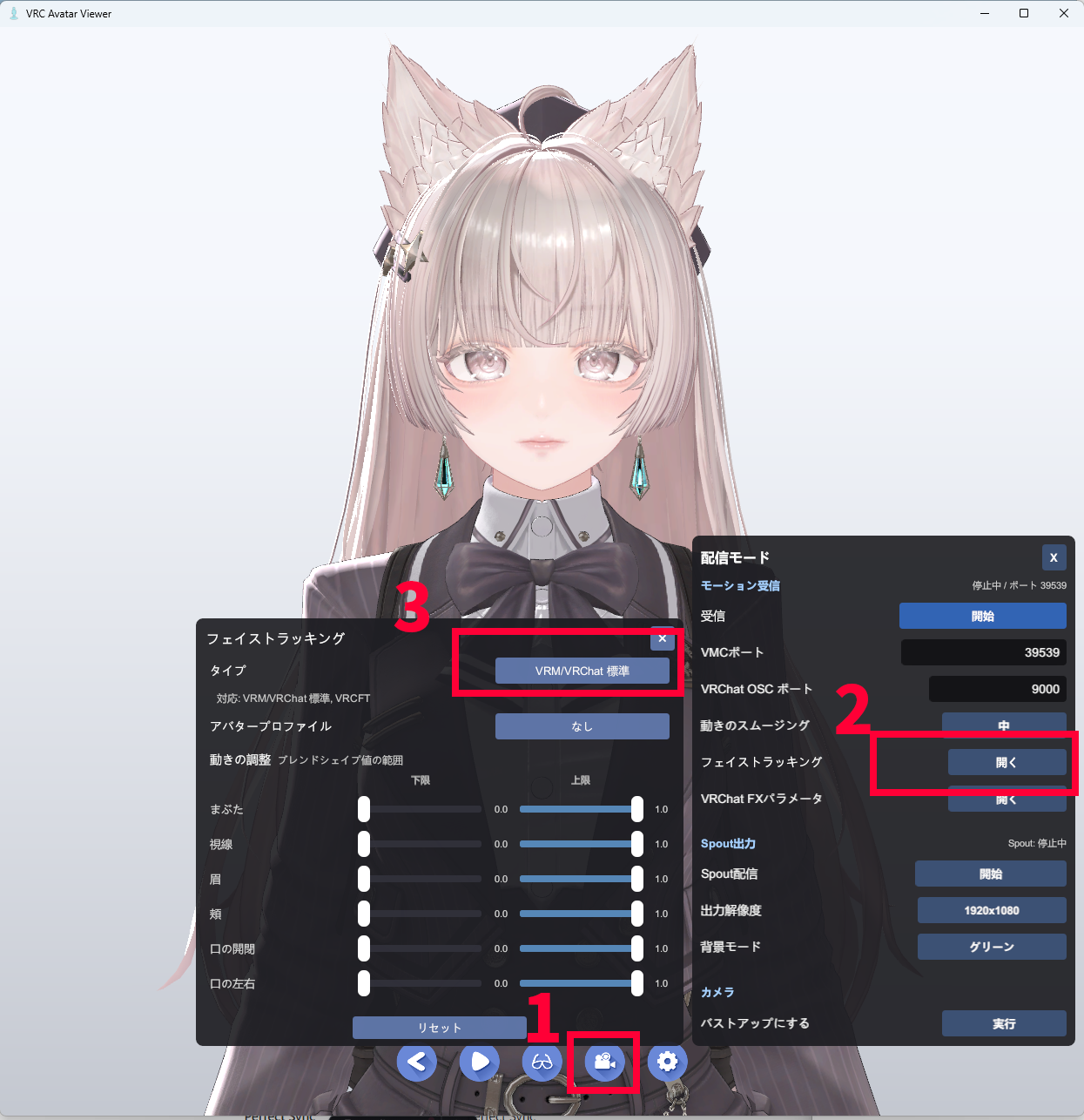
VRM Standard
Sends the basic expressions built into VRM, such as blinking, vowels, and gaze, via VMC. It works with any avatar, but the expressions are simple. Eyes and mouth also move on VRChat avatars. This is the default recommendation when using a webcam alone.
Perfect Sync
Sends ARKit's 52 blend shapes via VMC. On Perfect Sync-compatible avatars, even subtle movements of the mouth corners, eyebrows, and eyelids are reflected. It works best combined with iFacialMocap.
VRCFT
The Unified Expressions standard of VRCFaceTracking 5.x. Its strength is that it reproduces the same expressions as your avatar in VRChat.
- VRCFT generally requires adding a dedicated add-on to the avatar. Perfect Sync can be used with both VRChat and VRM avatars, as long as the avatar supports it.
Turn On Expression Sending
In the Capture App's parts to send, turn ON "Facial Expressions". If it's already ON, you can leave it as is.
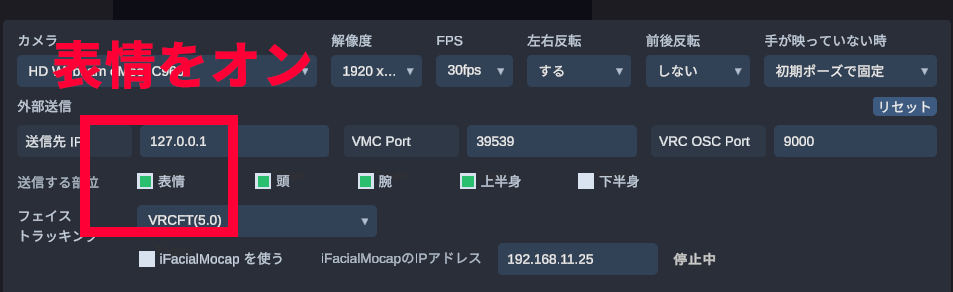
Choose the Face Tracking Type in the Viewer App
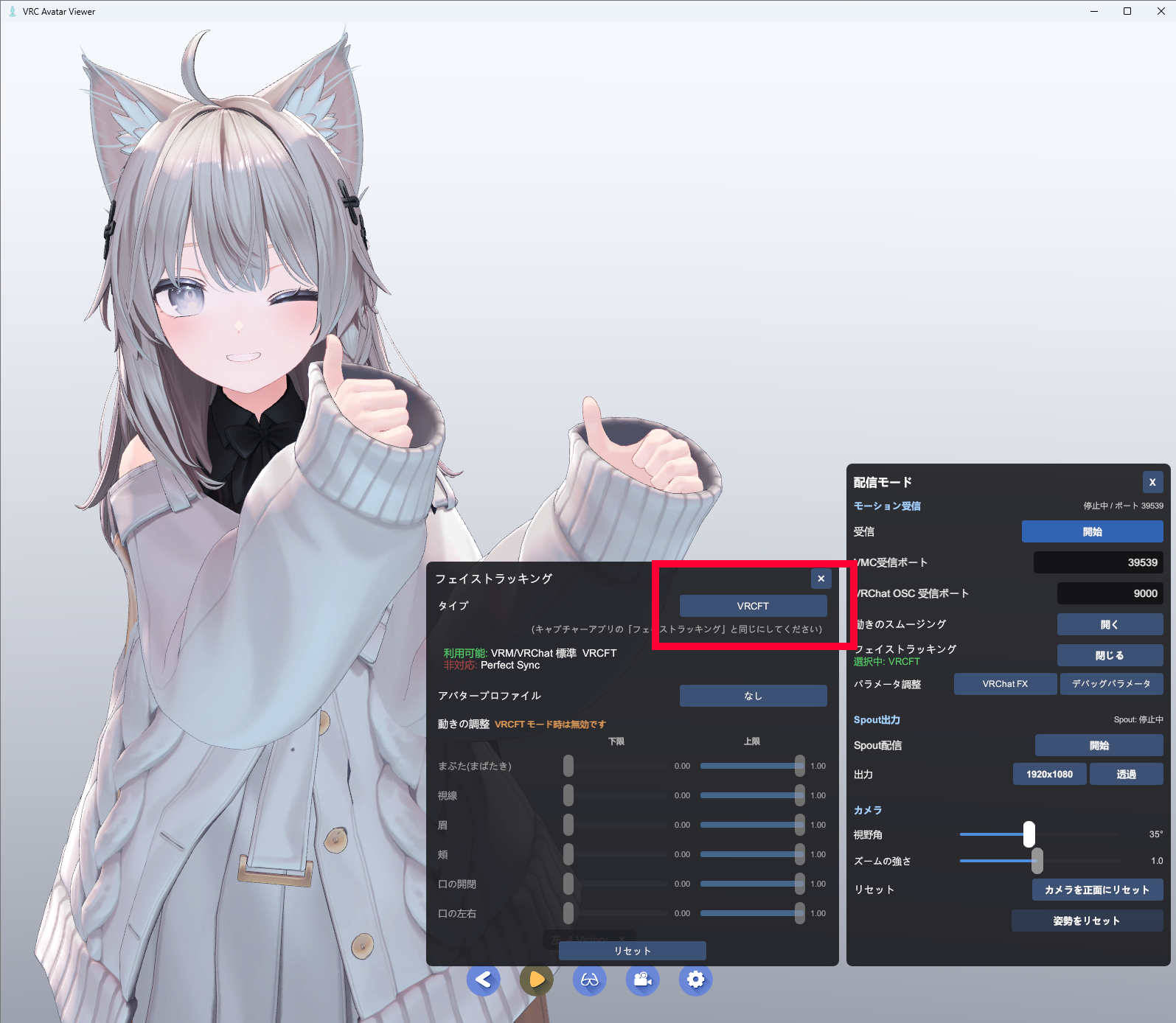
From the supported formats you checked in Step 3, choose the same "Type" in the Viewer app as the "Facial Expression Sending Format" you chose in the Capture App. The Viewer's type is switched in the window opened with the "Face Tracking" button on the Streaming Mode toolbar.
5-1. Open the Window
- Show your avatar in the Viewer app
- Turn ON Streaming Mode
- Click the "Face Tracking" button in the Streaming panel
5-2. Switch the Type
Each click of the "Type" button at the top of the window cycles through VRM/VRChat-Default → Perfect Sync → VRCFT. Make it match your choice in the Capture App.
| Viewer "Type" | Capture App "Facial Expression Sending Format" |
|---|---|
| VRM/VRChat-Default | VRM Standard |
| Perfect Sync | Perfect Sync |
| VRCFT | VRCFT |
5-3. Notes
- While VRCFT is selected, the per-category expression intensity sliders are disabled: VRCFT drives expression parameters directly via VRChat OSC, so the Viewer's blend shape intensity adjustments don't apply
Leave Only Expressions to VRCFaceTracking
You can set things up so that only body motion is sent from the Capture App, while expressions are sent from VRCFaceTracking. Besides iFacialMocap, you can use any of the many modules VRCFaceTracking supports.
This setup is mainly intended for advanced users who are familiar with VRCFT and face tracking devices.
VMC Protocol→ [Viewer App][iFacialMocap] → [VRCFaceTracking] →
VRChat OSC→ [Viewer App]
Who Does What
| Role | Route | What Is Sent |
|---|---|---|
| Motion | VMC Protocol | Pose of the body, head, arms, hands, and so on |
| Expressions | VRChat OSC | Face tracking such as blinking, mouth, eyebrows, and gaze |
Steps
- Start sending motion from the Capture App as usual
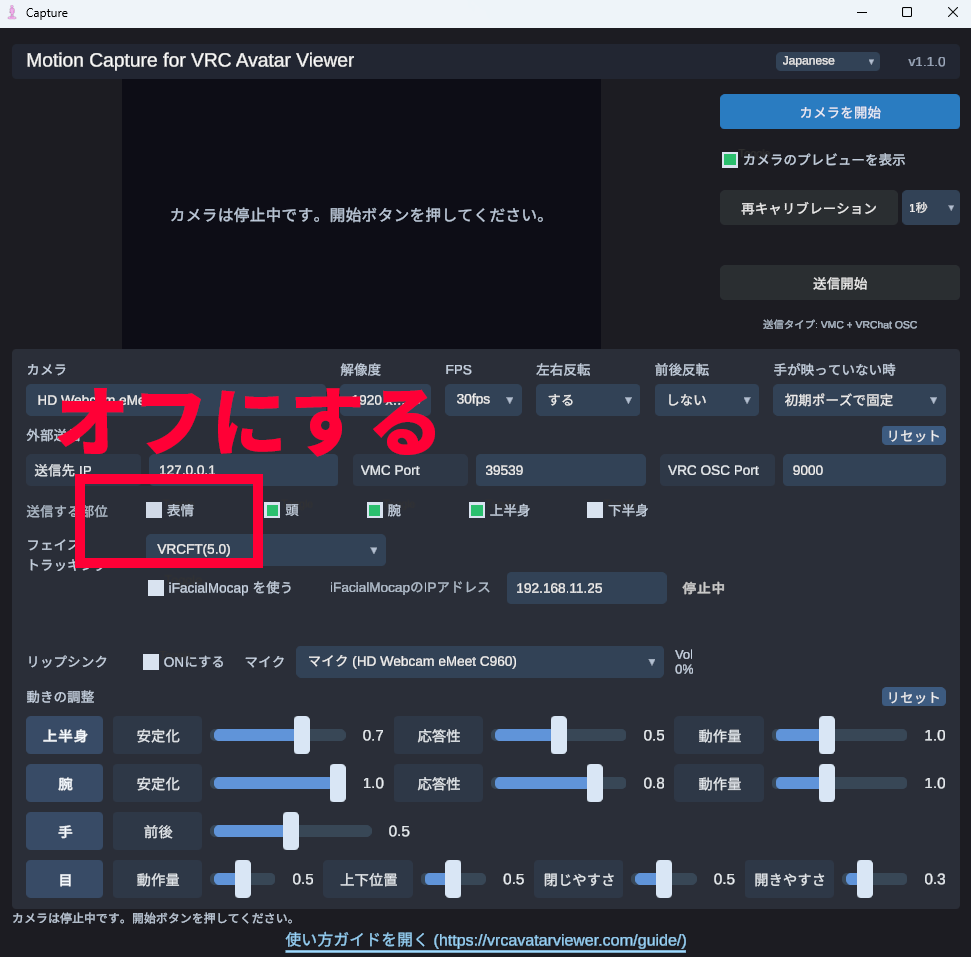
- Turn OFF expression sending in the Capture App
- Launch VRCFaceTracking and connect it to iFacialMocap from the VRCFaceTracking side
- In the Viewer app, switch the face tracking type to VRCFT and turn receiving ON
- Check that VRCFaceTracking recognizes the Viewer app as its destination and that the avatar's expressions move in the Viewer
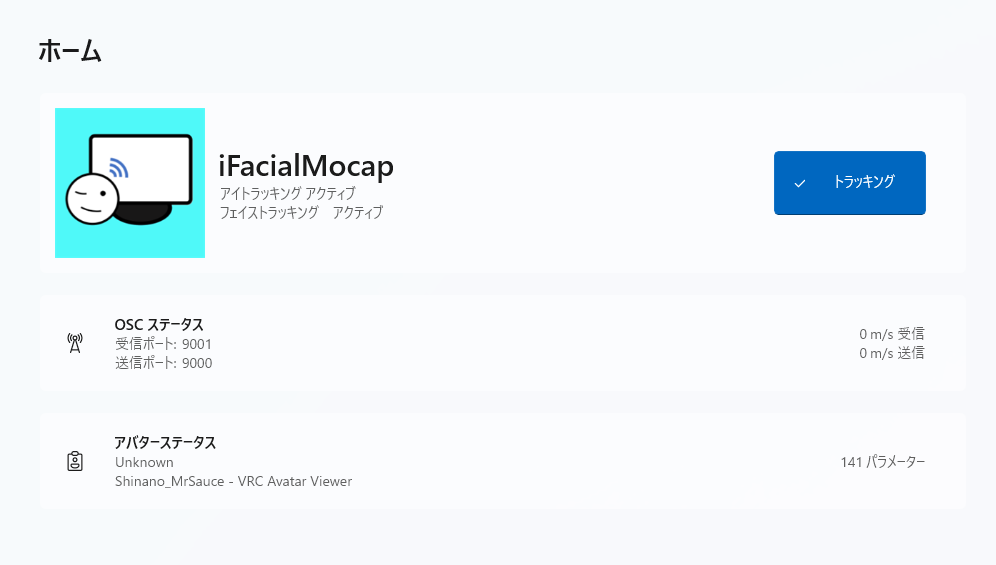
- Put the Viewer app into receiving mode first, then launch VRCFaceTracking and start tracking. However, depending on the add-on, it may only be recognized if you do it in the reverse order.
- Restarting VRCFaceTracking once may also fix the problem
- If expressions don't move, the cause may be the FX control of the VRCFT add-on installed on your avatar. Especially with add-ons generated by VRCFury (such as the MrSauce add-on), launch VRCFaceTracking first, then put the Viewer into receiving mode.
- Expression sending in the Capture App is turned OFF to prevent expressions from being applied twice, once via VMC and once via VRChat OSC. Body motion sending can stay ON
- Unless you switch the Viewer app to VRCFT, it can't receive the VRChat OSC expression parameters from VRCFaceTracking
- For detailed connection checks between VRCFaceTracking and the Viewer app, see the VRCFaceTracking Integration guide
If none of the above works, please contact the author. That said, there's a good chance the issue can't be resolved.