Troubleshooting Avatar Motion (FAQ)
What to check when you run into trouble with the Capture app, VMC connection, or OBS integration
This page collects frequently asked questions about using the capture app. For the basic steps, see Move Your Avatar (Capture App). For choosing a face tracking method, see Face Tracking.
- Is receiving turned ON in "Streaming Mode" on the Viewer app?
- Do the capture app's destination IP and VMC Port match the settings on the Viewer app?
- If you're using it without a webcam, did you select "No Camera (Use iFacialMocap)" in the camera dropdown?
The avatar doesn't move / behaves strangely
If your avatar's body, head, or other parts don't move, check the send/receive status and whether other VMC-related apps are conflicting.
- Make sure you are using the latest version of the apps
- Is receiving turned ON in Streaming Mode on the Viewer app?
- Have you gone as far as pressing "Start Sending" in the capture app?
- If both apps run on the same PC, is the capture app's destination IP set to
127.0.0.1? - Does the VMC Port match between the capture app and the Viewer app?
- Are you running it alongside other VMC-related apps?
First, try it with the unmodified base avatar only. If it still behaves strangely, the avatar itself is the cause, so please contact its creator.
Otherwise, the problem is usually caused by gimmicks or animations included in your modifications. Since we have no way of knowing what modifications you've made, we ask that you investigate this yourself. We recommend starting from the base avatar, adding your modification items one at a time to find the one causing the problem, and then removing it.
Facial expressions don't move
If facial expressions don't move, first make sure "Expression" is checked (turned on) in the capture app's parts to send.
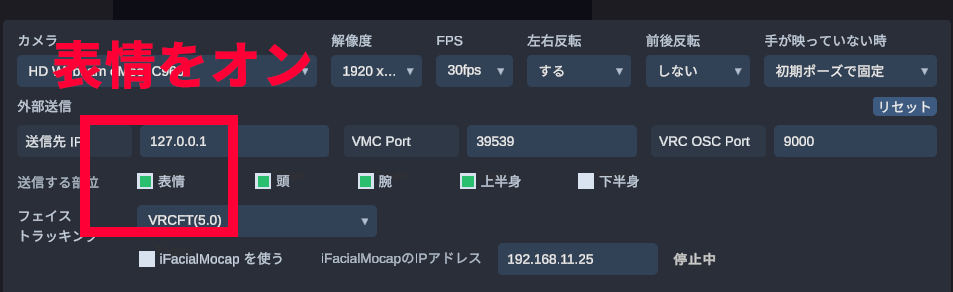
Also check the face tracking type and whether anything else is using the VRC OSC Port.
- Check that the face tracking type is correct (VRCFT, etc.)
- The face tracking type supported by the avatar, the Streaming Mode setting on the Viewer app, and the capture app setting must all match
- Are you running it alongside another app that uses the same VRC OSC Port, such as VRCFaceTracking?
How face tracking types map to expression blend shapes
Even for the same "open mouth" or "blink," the blend shape names and parameter names the Viewer looks for depend on the face tracking type. If the avatar has no matching expression, or the expression was made with only a small range of motion, some expressions may not move.
| Type | Blend shape names | What to check |
|---|---|---|
| VRM/VRChat standard | Mouth: A/I/U/E/O, aa/ih/ou/ee/ohBlink: Blink_L, Blink_R, blinkLeft, blinkRight |
Works with almost any avatar, but the movement is basic. For VRChat avatars, it won't work if the avatar has auto-blink or expression-control gimmicks. |
| Perfect Sync | Mouth: jawOpen, mouthFunnel, mouthPucker, etc.Blink: eyeBlinkLeft, eyeBlinkRight |
Allows rich expression changes. Mainly supported by VRM avatars, but VRChat avatars also work if they have blend shapes with the same names. |
| VRCFT | VRCFaceTracking 5.x Unified Expressions / FX parameters | Check the avatar's VRCFT support, its FX parameters, and the VRChat OSC port. How expressions move depends on how the add-on is built. |
How can I check which face tracking types my avatar supports?
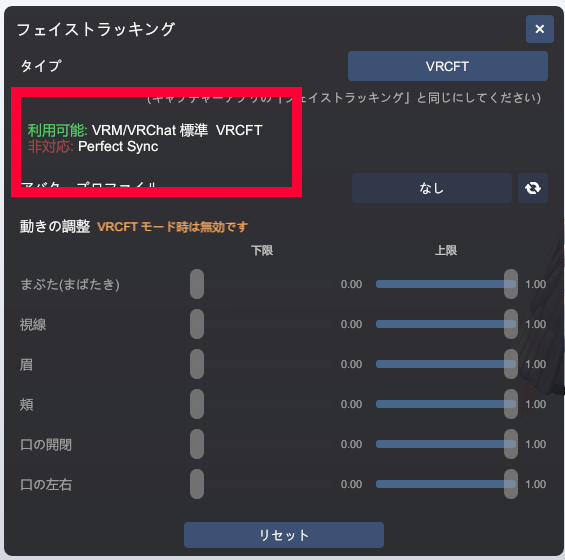
The Viewer app lets you check which face tracking types the currently loaded avatar supports. Before checking the capture app or VRCFaceTracking settings, first make sure the avatar supports that type.
- Display the avatar in the Viewer app
- Open Streaming Mode from the toolbar
- Click the Face Tracking button in Streaming Mode
- Check what is listed under Available and Unsupported in the window
- Types listed under Available can be used with that avatar. Set the capture app and the Viewer to the same type
- Types listed under Unsupported have been judged as not supported by the current avatar
- If VRCFT shows as Unsupported even though you've installed a VRCFT add-on, the add-on may not have been applied correctly, or the FX parameters or the state at export time may be wrong. Check the avatar setup in Unity and export it again
Can I use it without a webcam?
Yes. With a Face ID-capable iPhone / iPad and iFacialMocap, you can send facial expressions, head orientation, and eye gaze without a webcam.
- In the capture app's "Camera" dropdown, select "No Camera (Use iFacialMocap)"
- Turn ON "Use iFacialMocap"
- Enter the IP address for iFacialMocap and start sending from your iPhone
- Once the connection status changes to "Receiving," run the initial calibration and start sending
- Without a webcam, body, arm, and lower-body motion cannot be captured
- The "Start Camera" button is not used in this mode. It is normal for the button to be disabled
- If you turn ON "Use iFacialMocap" while a webcam is selected, body movement comes from the webcam and facial expressions come from iFacialMocap
- If iFacialMocap stays in the waiting-for-connection state, check that the iPhone and PC are on the same LAN, that the iPhone's IP address is correct, and that iFacialMocap is ready to send
I can't press the "Start Sending" button
"Start Sending" becomes available once the capture app is receiving valid input. With a webcam, check that the camera has started and the initial calibration is done. With iFacialMocap alone, check iFacialMocap's receiving status.
- When using a webcam Start the camera, and once you appear in the preview, run the initial calibration. If your face or upper body can't be detected, you may not be able to start sending.
- When using iFacialMocap only Set the camera to "No Camera" and make sure iFacialMocap shows as receiving. You can't start sending if no data is being received.
- When using neither There is no valid tracking input, so you can't start sending.
Motion is choppy or freezes
If motion freezes, tracking goes haywire, or the response is unstable, check the input status in the capture app and the smoothing settings in the Viewer app.
- Check that you appear in the capture app's preview and that tracking is working
- If your clothes are close in color to the background, tracking accuracy drops noticeably. Avoid clothes in the same color family as your floor or walls, and wear colors that contrast strongly with the background
- If you want to move your arms, make sure your elbows and arms are within the camera's view
- In the Viewer app, open "Motion Smoothing" in Streaming Mode to adjust each body part, such as the head, body, and hands
- Higher values make motion smoother but slightly slow down the response
- Lower values make the response faster, but motion becomes choppier when the input is noisy
- When using iFacialMocap alone, Wi-Fi latency and packet loss can also make motion unstable. Connect your iPhone and PC to the same network and use as stable a connection as possible
- In VRCFT mode, the expression data and FX parameter movement from the sender take priority over the Viewer's expression smoothing
これはほかの配信者さんにもお伝えしたいのですが、トラッキングを安定させるために、カメラ性能よりも「画角」と「服」が大事でして、
— Rob_VRC (@Rob_VRC) April 22, 2026
・肘と腕が入るくらいの画角にする(添付画像くらい)
⇒ トラッキングの安定性が上がります
・腕が出る服(半袖とか)を着る
⇒… pic.twitter.com/u5SXE0SPa9
I can't bring it into OBS
There are two main ways to bring the Viewer app into OBS: Spout Output and transparent window capture. We usually recommend Spout Output.
- Turn ON Spout Output in the Viewer app, then add a Spout-compatible source in OBS
- If the source doesn't show up in OBS, check that the Viewer app and OBS are running on the same GPU
- To use transparent window capture, turn ON transparent background mode in the Viewer app
- In the trial version, the "TRIAL" label also remains in the Spout Output
I can't connect to iFacialMocap
If motion data from your iPhone arrives only for a moment, the status switches to "Receiving" but immediately goes back, or the connection never stabilizes and stays waiting, check the Windows firewall or the local network permission on your iPhone.
Check Windows Defender Firewall
Data from the iPhone may be reaching the PC while Windows Firewall blocks it from being received. This is especially likely if data gets through for just a moment right after the signal that the capture app sends to the iPhone every few seconds.
- Search for "Firewall" in the Windows Start menu
- Open the Windows Defender Firewall screen
- Temporarily turn off the firewall
- Check whether the capture app's status stays stable at "Receiving"
- If turning off the firewall makes it stable, allow the capture app's communication in your firewall settings
- When you're done checking, turn the firewall back on for security
Check the local network permission on your iPhone
If Local Network access for iFacialMocap is turned off in your iPhone's per-app permissions, it may not be able to communicate even when connected to the same Wi-Fi as your PC.
- Open the "Settings" app on your iPhone
- Open "Apps"
- Select "iFacialMocap" from the list
- Turn on "Local Network" under "Allow iFacialMocap to Access"
- Reconnect iFacialMocap and the capture app
- Are the iPhone and PC connected to the same Wi-Fi / LAN?
- Is the iPhone IP address entered in the capture app correct?
- Is iFacialMocap ready to send?